


Google Authenticator is the main way to connect 2FA in Pay2.House. It is needed to protect the account, log in to the personal account, and confirm operations.
2FA is an additional security code. The user enters not only the password, but also a one-time 6-digit code from the app. The code is regularly updated, so access to the account becomes more secure.
In Pay2.House, this code may be required when logging in, issuing a virtual card, confirming a payment, or performing other actions related to security.
In this guide, we will cover:
-
where the 2FA settings are located in Pay2.House;
-
how to connect Google Authenticator;
-
how to confirm the connection with a code;
-
what to do if the code does not work;
-
what to do if access to Google Authenticator is lost.
If you are just starting to use Pay2.House, first study the basic instructions - How to start using Pay2.House after registration
What confirmation methods are available
There are two ways to confirm operations in Pay2.House:
-
Google Authenticator;
-
SMS verification.
We recommend using Google Authenticator. This is the main 2FA method in Pay2.House, which is convenient to use for logging in to the account and confirming operations.
How to connect Google Authenticator in Pay2.House
Before you start, make sure you have access to your Pay2.House account and to the phone where you want to install Google Authenticator.
Step 1. Log in to your Pay2.House account
Open the Pay2.House website and log in to your personal account using the email and password from your account.
After logging in, you will get to the service interface, where the main sections are available: cards and accounts, top-up, transfers, operation history, currency exchange, tickets, and other functions.
You can read more about navigation inside the personal account in a separate guide - Guide 1. How to register and start working with Pay2.House
Step 2. Open “Profile Settings”
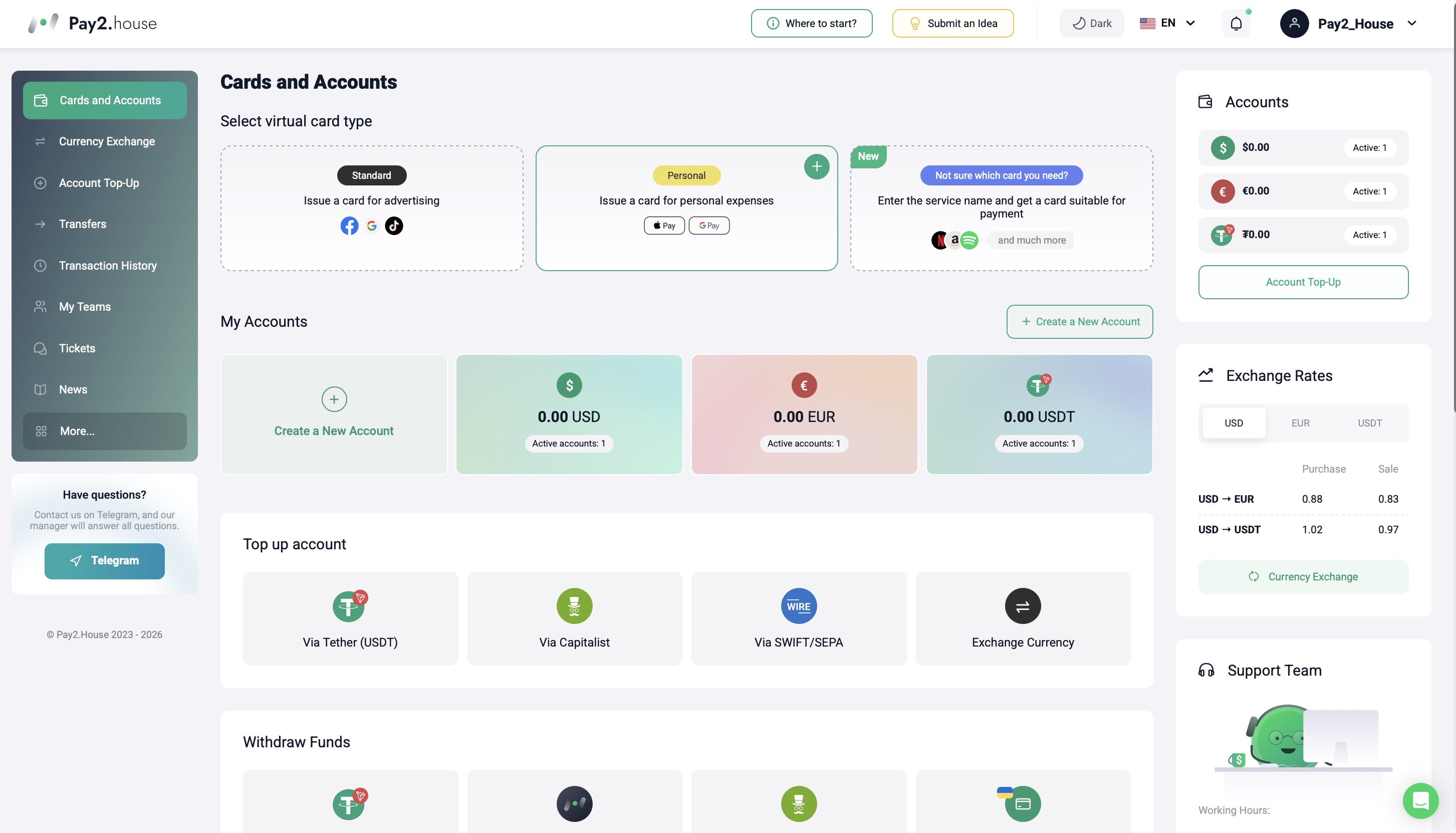
In the upper right corner of the interface, click your username or profile icon.
In the menu that opens, select the “Profile Settings” section.
Step 3. Go to the “Security” section
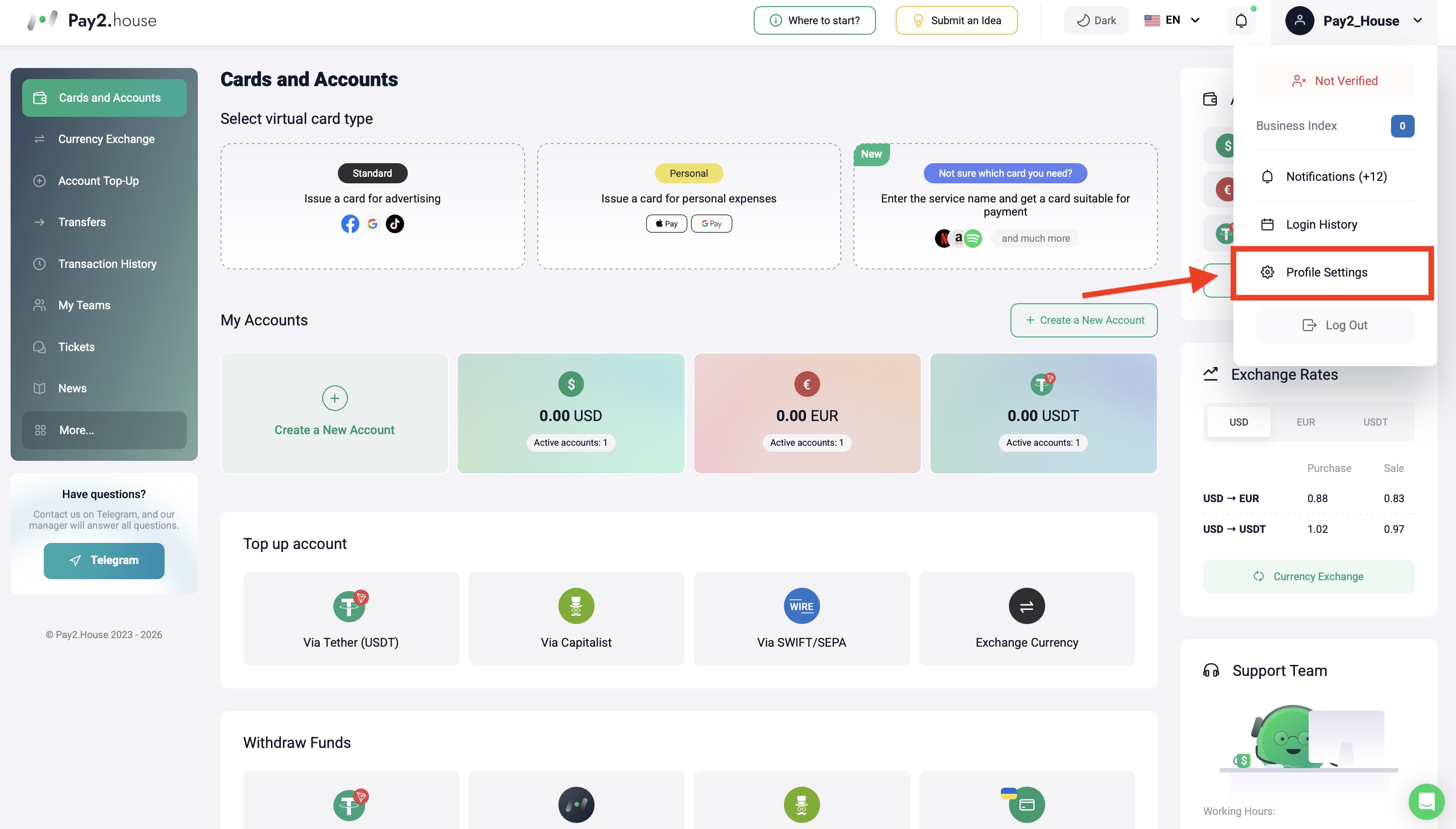
In the profile settings, open the “Security” section.
This is where the parameters related to account protection and operation confirmation methods are located.
Step 4. Find the “Payment Verification Methods” block
In the “Security” section, find the “Payment Verification Methods” block.
This block is responsible for payment confirmation methods and other actions in the account.
There are two confirmation methods available in Pay2.House:
-
Google Authenticator;
-
SMS verification.
We recommend using Google Authenticator. Select this option and click the “Enable” button.
Step 5. Install Google Authenticator
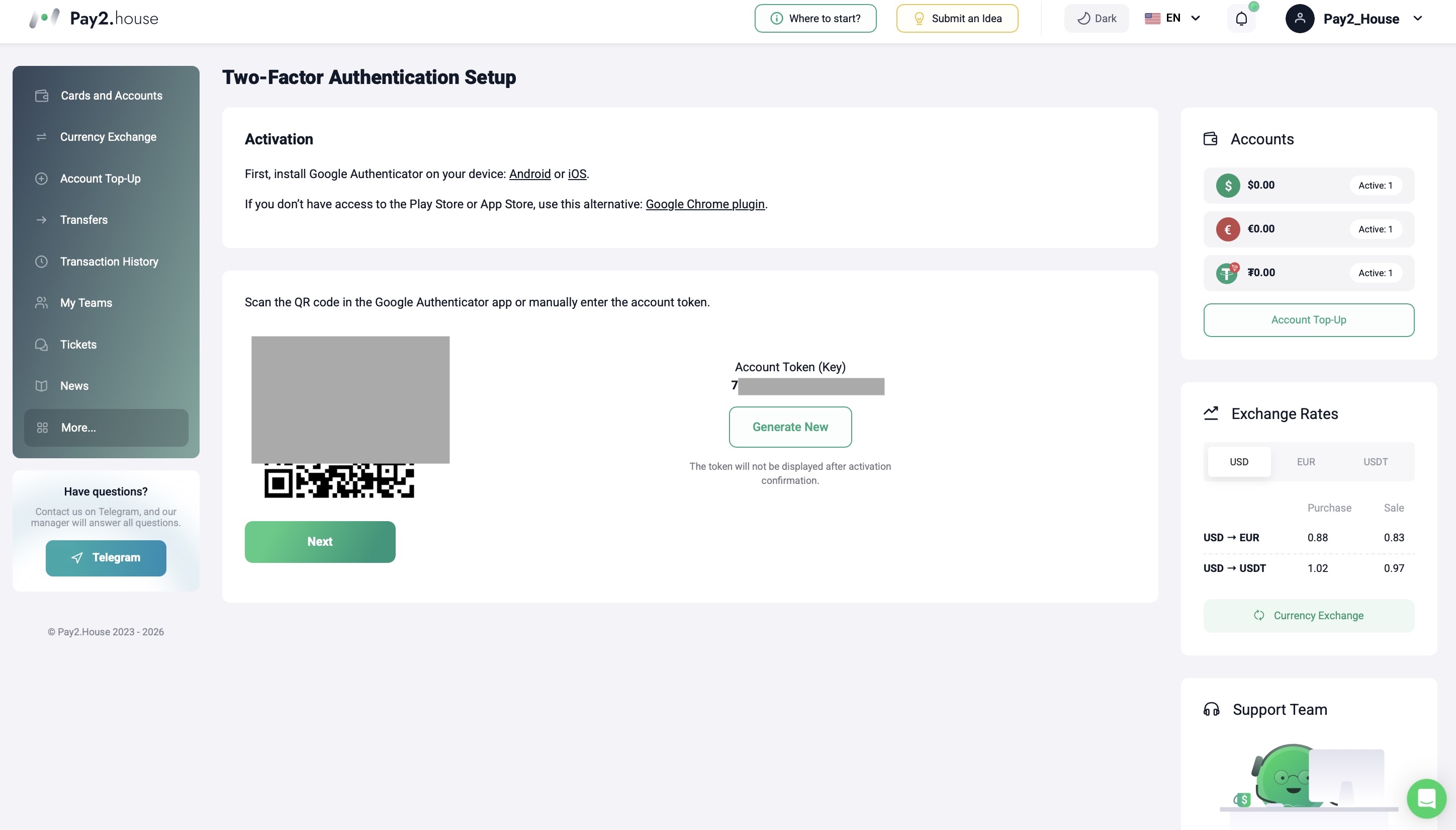
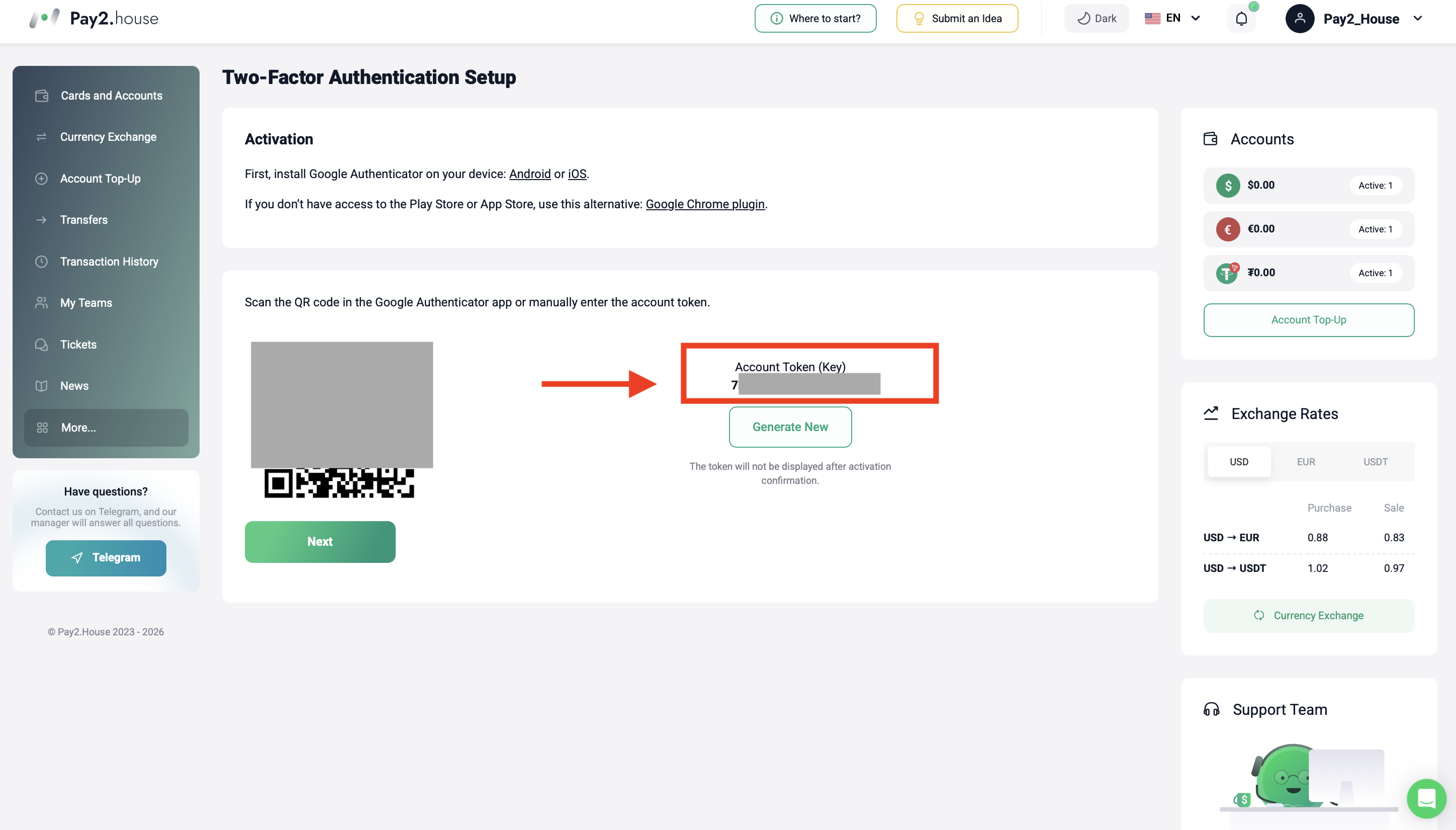
After clicking “Enable”, the system will show a QR code and a key for manual connection.
If the Google Authenticator app is already installed on your phone, you can proceed to the next step.
If the app is not installed yet, install it from the official store:
We recommend installing Google Authenticator specifically on your phone. This way, access to 2FA codes will be more convenient and secure.
If you do not have access to Google Play or the App Store, you can use an alternative option - a 2FA plugin for Google Chrome. But the main recommended method is the Google Authenticator app on your phone.
Step 6. Open Google Authenticator on your phone
Open the Google Authenticator app on your phone.
If the app asks you to log in through a Google account, log in using your Google email.
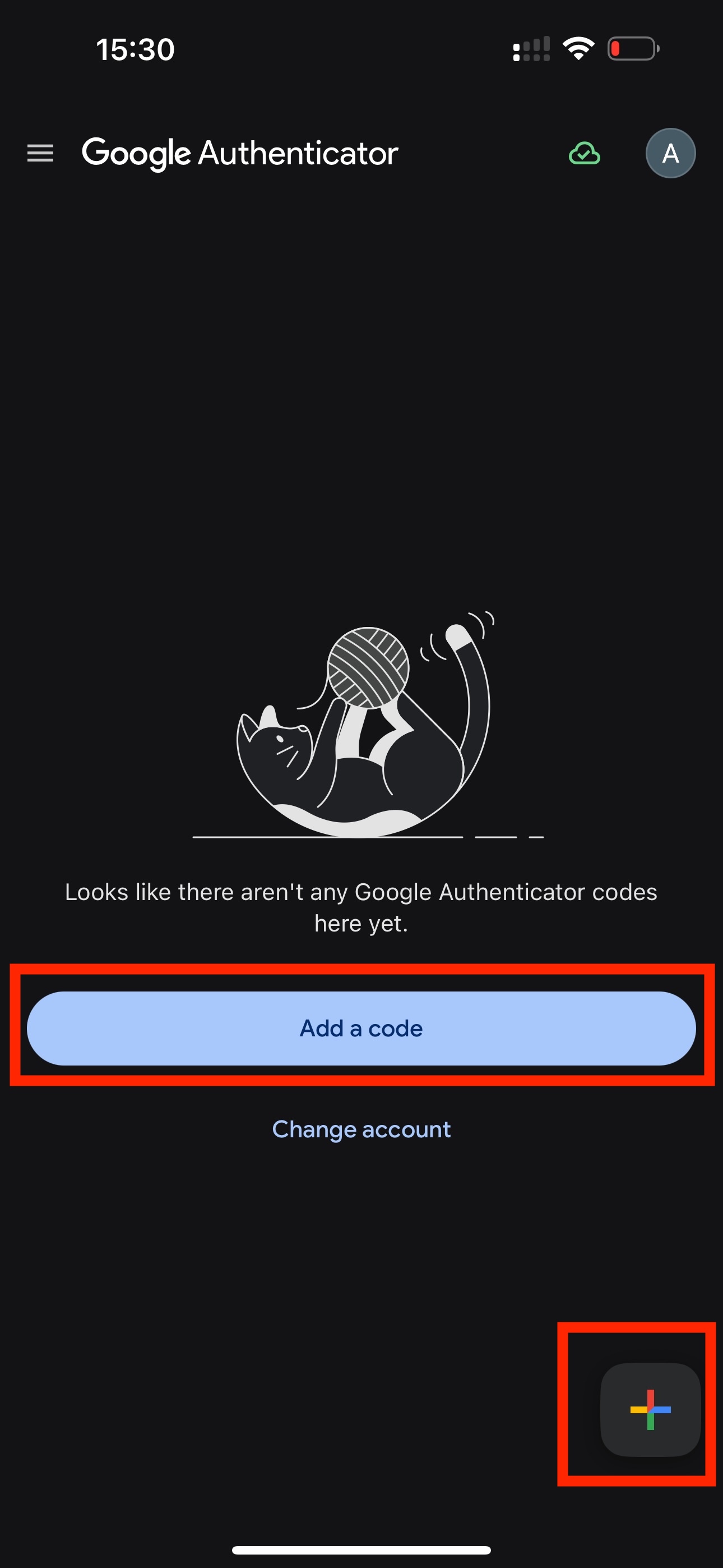
If you have not used Google Authenticator before and there are no codes in the app yet, the “Add a code” button may appear on the screen. You can also use it to add your Pay2.House account.
You can also click the plus icon in the lower right corner of the app. Depending on the app version, it may be located slightly differently.
Step 7. Scan the QR code
After selecting Google Authenticator in Pay2.House, the system will show a QR code.
In the Google Authenticator app, click “Add code” or the plus icon “+”.
After that, the app will offer two options:
-
“Scan a QR code”;
-
“Enter a setup key”.
Select “Scan a QR code”.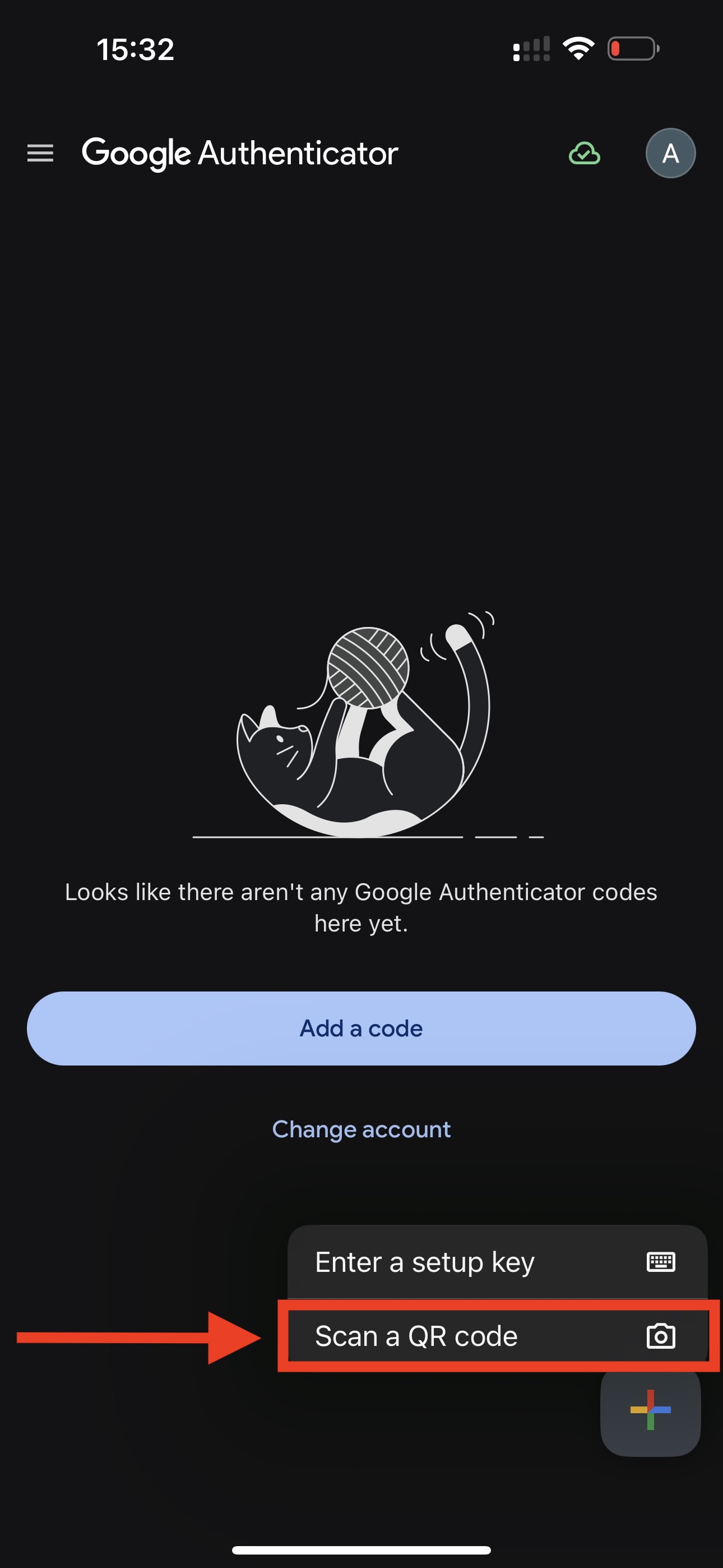
Point your phone camera at the QR code in the Pay2.House personal account.
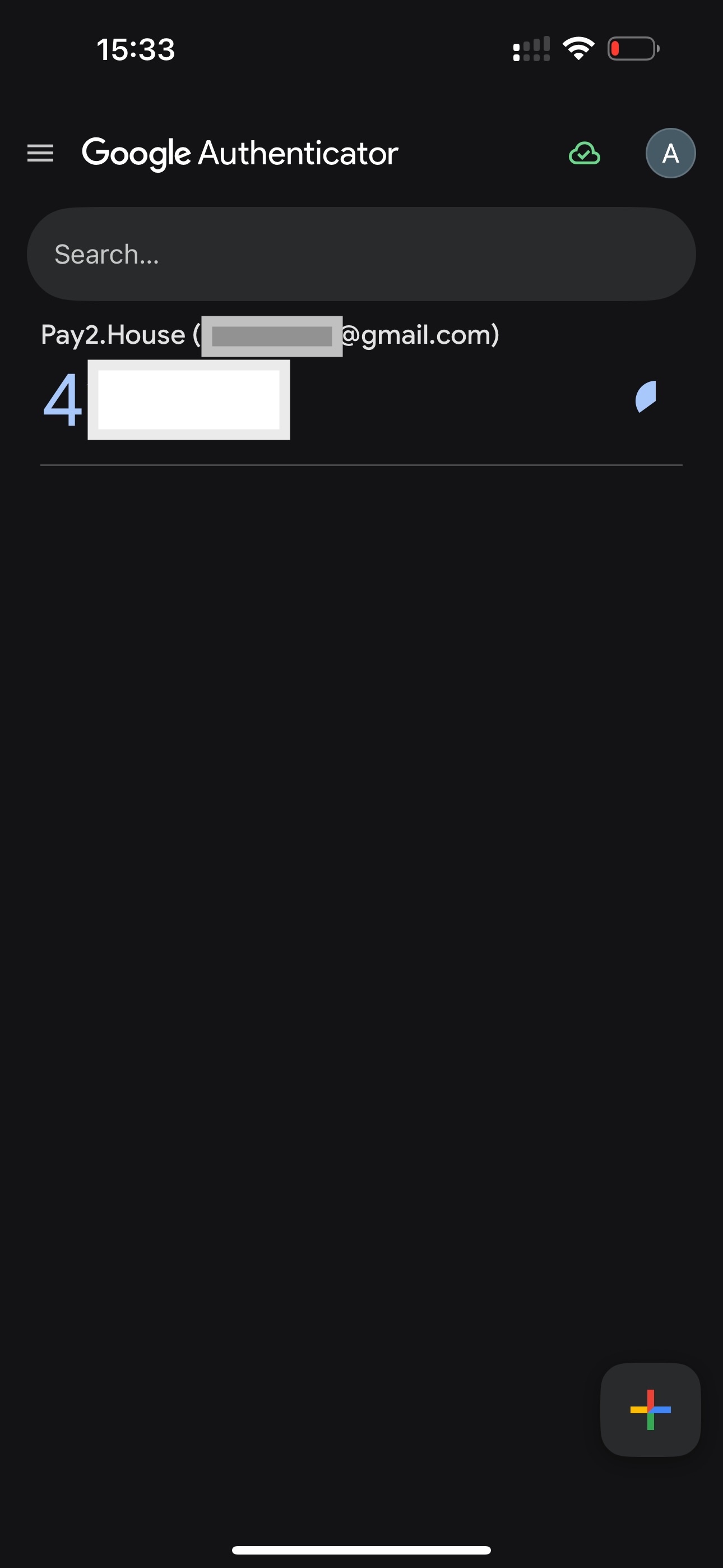
After scanning, a new Pay2.House account will appear in the app and a 6-digit code will start generating.
This is the easiest way to connect Google Authenticator.
Step 8. If the QR code does not scan, enter the key manually
If you cannot scan the QR code, use manual entry.
In Pay2.House, a secret key or token is displayed next to the QR code. Copy it - this key will need to be inserted into Google Authenticator.
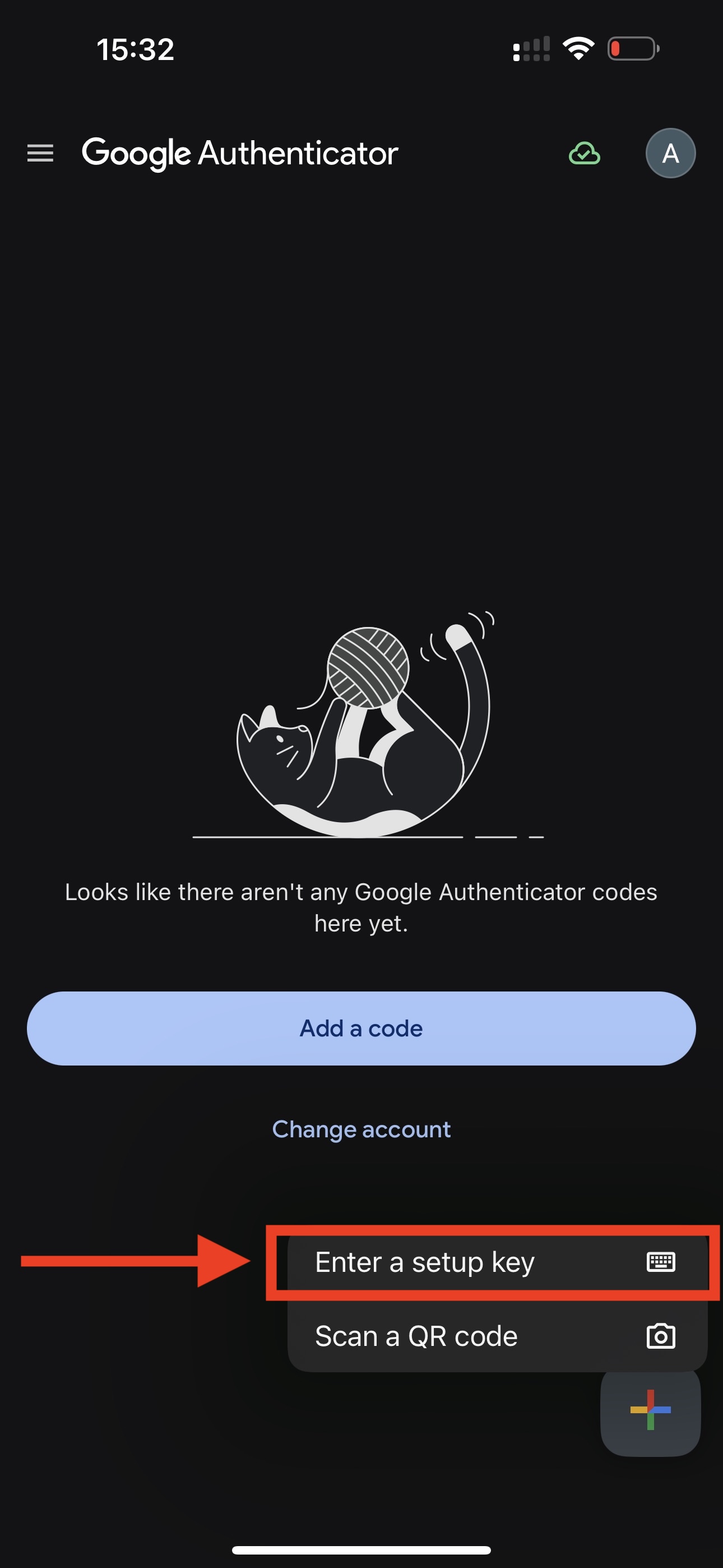
In the Google Authenticator app, select the “Enter a setup key” option.
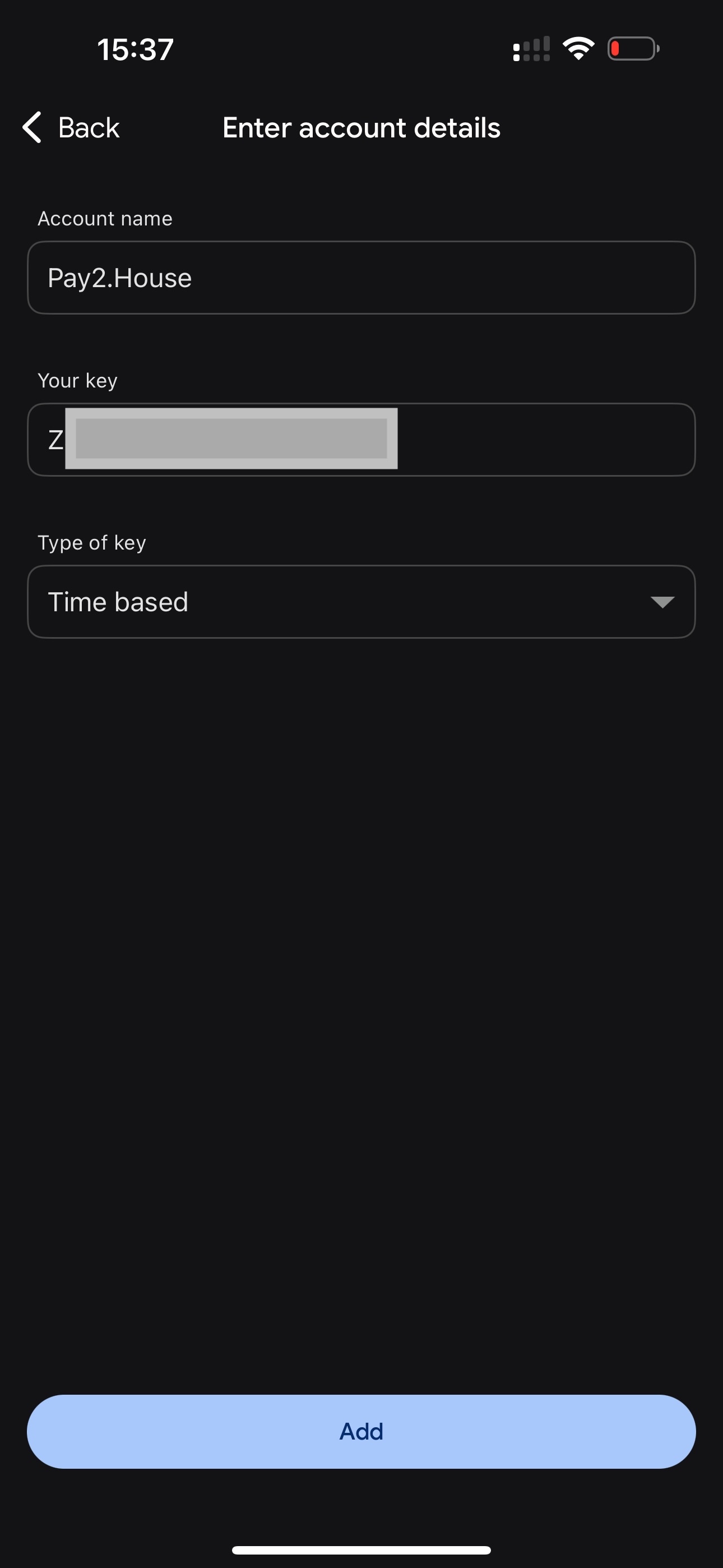
Next, fill in the account details:
-
account name - enter Pay2.House or another name that is clear to you;
-
key - insert the secret key displayed next to the QR code in Pay2.House;
-
type of key - select Time-based.
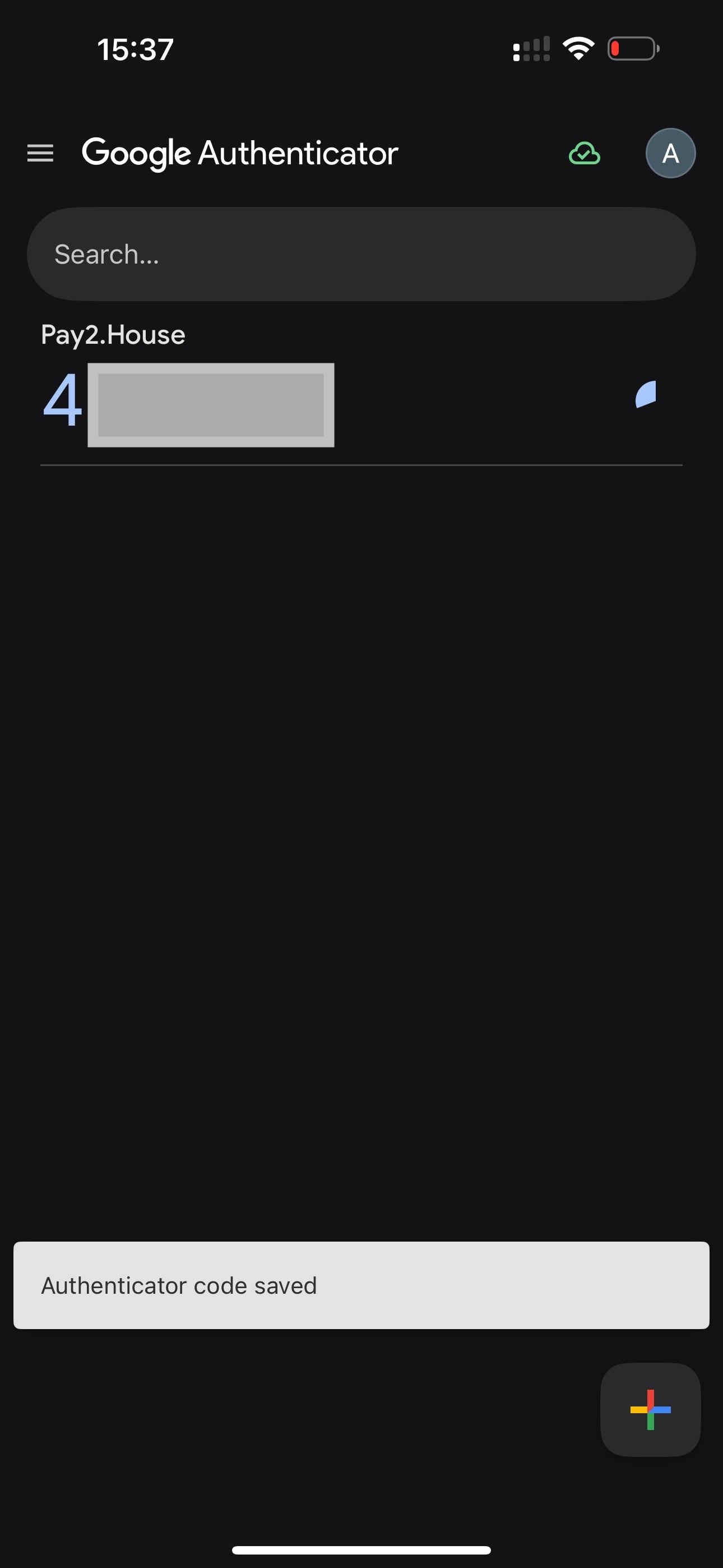
After that, save the data.
Google Authenticator will start showing a 6-digit code for Pay2.House. This code will need to be entered in the Pay2.House personal account to confirm the connection.
Step 9. Confirm the connection in Pay2.House
After you have added the Pay2.House account to Google Authenticator through the QR code or manual key entry, return to your Pay2.House personal account.
Click the “Next” button under the QR code.
After that, you will get to the two-factor authentication setup page. Here you need to confirm the Google Authenticator connection.
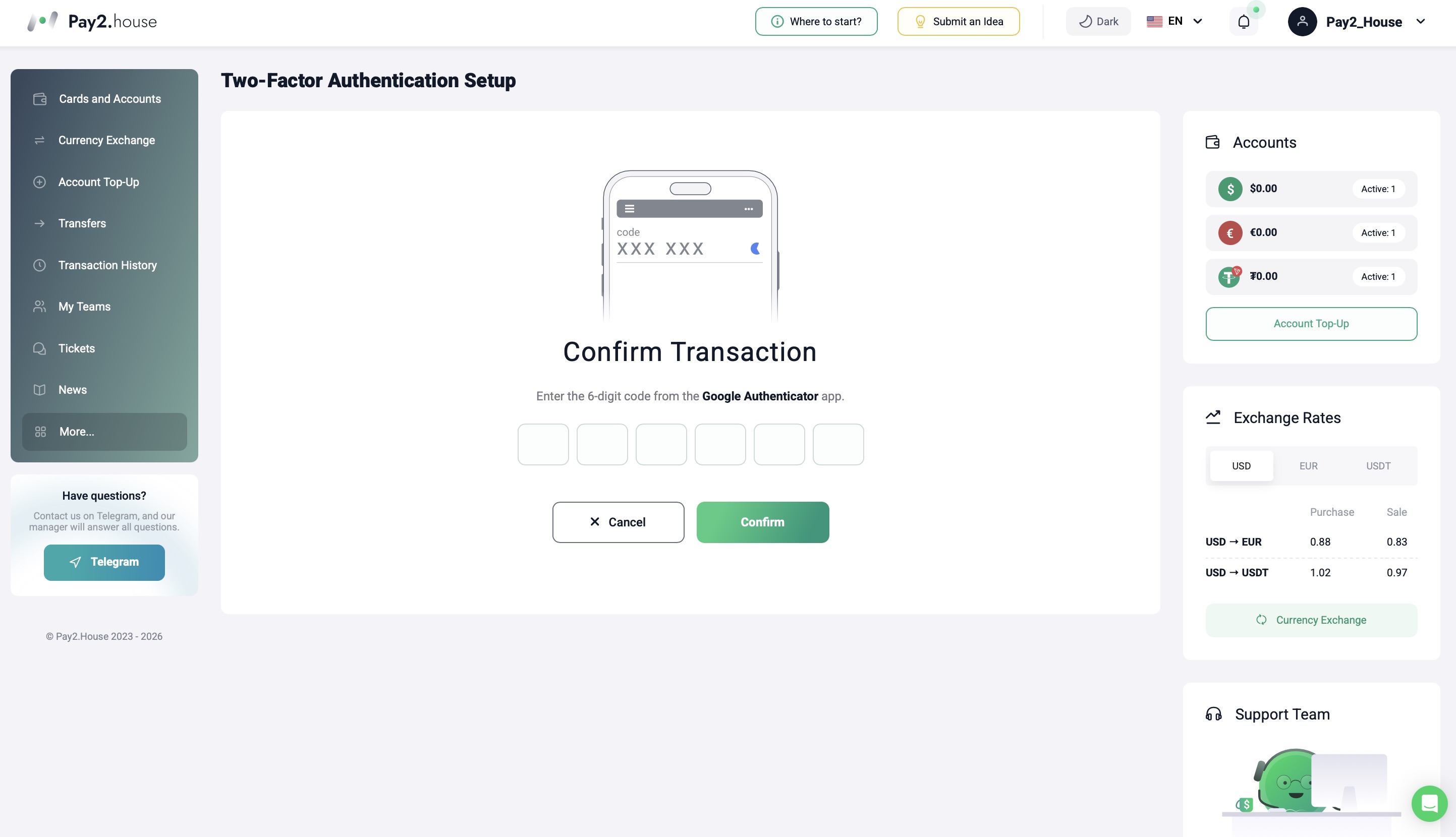
Open Google Authenticator and find the code for Pay2.House.
Enter the 6-digit code from the app into the confirmation field in the Pay2.House personal account. The code must be entered without spaces or additional symbols.
Important: the code in Google Authenticator updates approximately every 30 seconds. If there is little time left before the update, it is better to wait for a new code and enter it immediately.
After entering the code, click the “Confirm” button.
Step 10. Check that 2FA is activated
If the code is entered correctly, two-factor authentication will be activated for your Pay2.House account.
After that, Google Authenticator will be used to protect the account and confirm important operations.
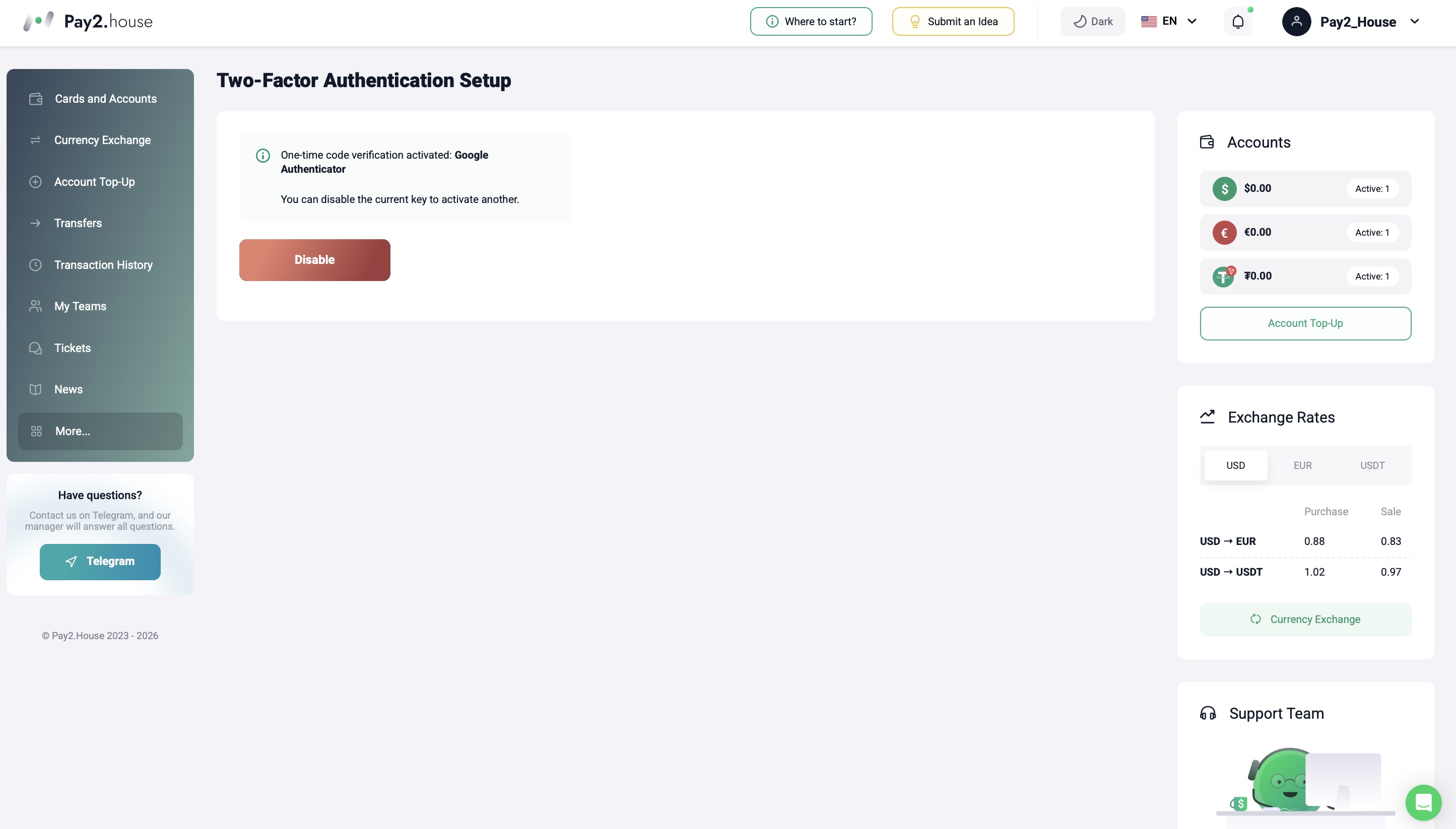
How to understand that 2FA is connected successfully
After successful connection, you can go again to “Profile Settings” → “Security”.
In the “Payment confirmation methods” block, you will see that Google Authenticator is connected.
Also, during the next login or operation confirmation, Pay2.House may request a one-time code from the app.
If the system accepts the code and allows you to continue the action, it means 2FA is configured correctly.
What to do if the Google Authenticator code does not work
Sometimes the user enters the code, but the system does not accept it.
Most often, the reason is one of the following:
-
the wrong time is set on the phone;
-
automatic time synchronization is disabled;
-
the code from another account is being entered;
-
the code has already updated, but the user entered the old value;
-
an old token is being used after reconnecting 2FA.
First, check the time on your phone and enable automatic date and time synchronization.
Then open Google Authenticator and make sure you are selecting the code specifically for the Pay2.House account.
Also check the synchronization of Google Authenticator with your Google account. A green indicator should be displayed next to the Google account avatar. This means that the codes are saved in the Google account and synchronization works correctly.
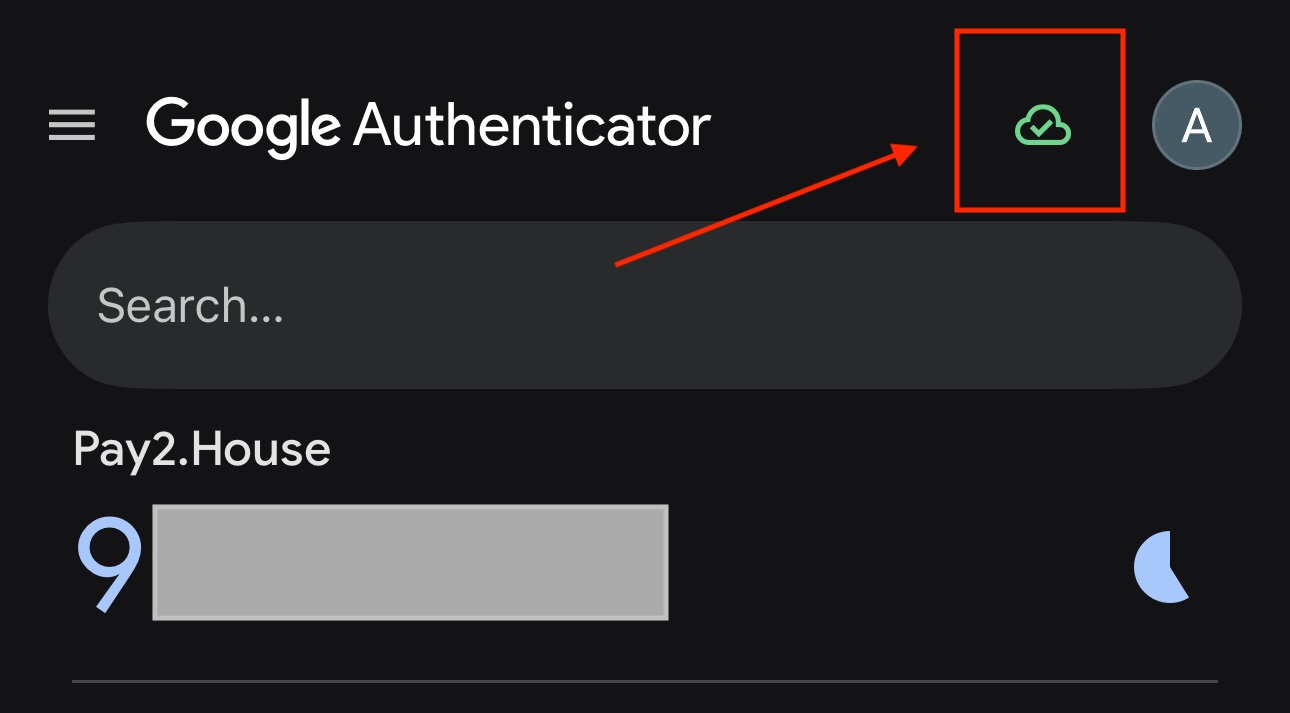
If there are only a few seconds left before the code updates, wait for a new code and enter it immediately after it appears.
What to do if access to Google Authenticator is lost
If you have lost access to your phone, deleted Google Authenticator, or cannot get the code, contact Pay2.House support.
To do this, create a ticket in your personal account, write to the Pay2.House Telegram group, or contact support in another available way.
In your request, specify:
-
the email of your Pay2.House account;
-
what exactly happened to your 2FA access;
-
which confirmation method was connected.
It is also important to have access to the email address used to register the Pay2.House account. It will be needed to verify the request.
Support will check the information and suggest the next steps.
Important: do not share 2FA codes with third parties and do not send them in chats unless this is required by the official security process.
How to disable Google Authenticator
If you need to disable Google Authenticator, go to “Profile Settings” → “Security” and open the “Payment confirmation methods” block.
Then select the connected Google Authenticator and disable it through the account settings.
Important: restriction on financial operations after disabling 2FA
If support resets 2FA at your request, a restriction on financial operations for 72 hours is enabled on the account. During this time, you will not be able to perform financial operations.
This rule is used for additional account protection after changing security settings.
Security tips
To avoid losing access to your account and reduce risks, we recommend following a few simple rules:
-
do not delete Google Authenticator unless necessary;
-
do not share 2FA codes with other people;
-
do not store your password and 2FA codes in the same place;
-
keep access to the email specified in your Pay2.House account;
-
use a strong password for your account;
-
check that you are entering the code specifically from Pay2.House.
If you work in a team, do not share personal account access. For teamwork, Pay2.House has a separate “My Teams” tool. It helps distribute access and control budgets.
More details: https://pay2.house/blogs/article/moi-komandy-v-pay2-house-instrument-timlida-dlya-kontrolya-bayerov-i-byudzhetov
Conclusion
Google Authenticator helps protect your Pay2.House account, confirm login, payments, and important actions inside the service using one-time codes.
After setting up 2FA, you will be able to work more securely with your account, balances, virtual cards, and payments in Pay2.House.



 Telegram
 Email
Email








Be the first to share your opinion!
We value your feedback — share your thoughts.