



Pay2.House has launched the “My Teams” tool – a new way to simplify and systematize the work of affiliate teams. Create separate teams for different directions (Facebook, Google, TikTok), invite employees, allocate budgets, issue cards – all in one window, under the full control of the team leader.
The tool is already available to all users – try it out and see how much easier team management has become.
Why it’s needed
-
Expense transparency. You can see who spends and how much – across cards and multi-currency accounts (USD, EUR, USDT).
-
Centralized management. The team leader controls deposits, withdrawals, receives statements, and can exclude a member.
-
Control and security. All activity is recorded: transactions, logins, authorizations. This is the foundation of anti-fraud inside the team.
The pain of affiliate teams
-
Card chaos. Each buyer has their own card. When there are 10+, confusion begins.
-
No transparency. The team leader doesn’t see in real time who is spending what. Reports often arrive late or with errors.
-
Fraud risks. Money is spent for the wrong purpose, and this is only discovered at the reporting stage.
-
Lots of manual work. Deposits, accounting, limit control – all this manual work takes hours.
How “My Teams” solves the problem
The feature turns the team leader’s account into a full-fledged dashboard. You can see:
-
the current status of invited members,
-
expenses for each account and card,
-
the history of all transactions and authorizations.
Full control, transparency, automation. No more collecting data manually.
When it’s especially useful
-
Teams with 5+ members. The more people, the higher the risk of losses and confusion. This tool solves it.
-
Agencies. Conveniently split budgets and cards by clients, verticals, and GEOs.
-
Test teams and pilot launches. Convenient to create a separate team for each experiment with its own accounts, limits, and accesses for executors.
How it works: step-by-step guide
Step 1. Creating a team
Open the My Teams section in the side menu. Here you see the start screen, which displays the message “You don’t have any teams yet.” This is where the work begins.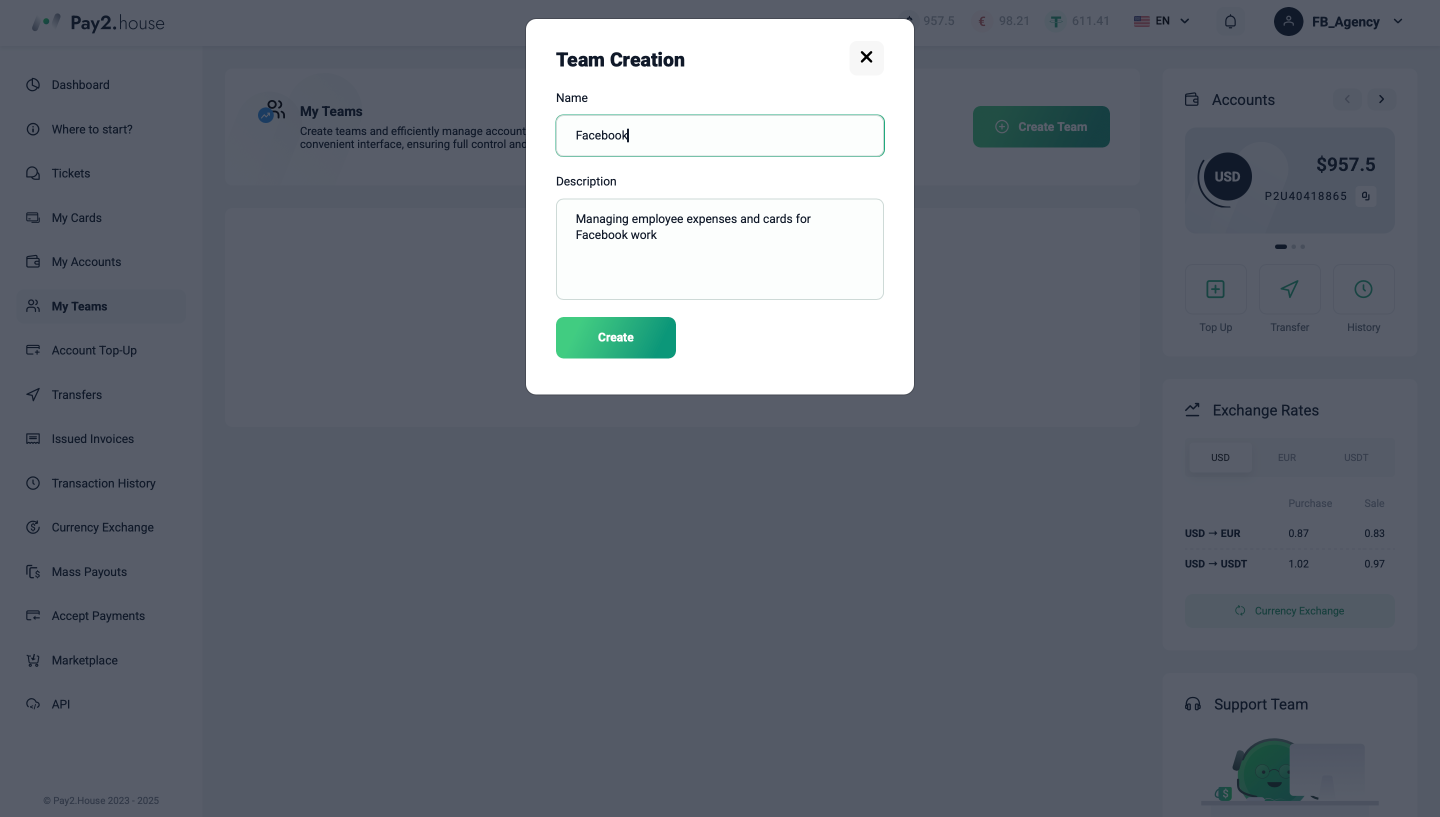
Click the Create Team button, after which a form opens. In it:
-
In the “Name” field, specify a short and clear name, for example: FB – US, Google – EU, TikTok – WW.
-
In the “Description” field, write why the team is being created: for example, “managing expenses for Facebook” or “accounts for EU traffic.”
After filling it out, click Create, and the team appears in the list.
After confirmation, the system shows a window with a notification that the team has been created. The window confirms the successful creation and offers to immediately invite participants.
Step 2. Inviting members
Click Invite, a modal window opens. Enter the participant’s email. Requirements:
-
the user is already registered in Pay2.House;
-
is not part of another team;
-
is not the owner of their own team.
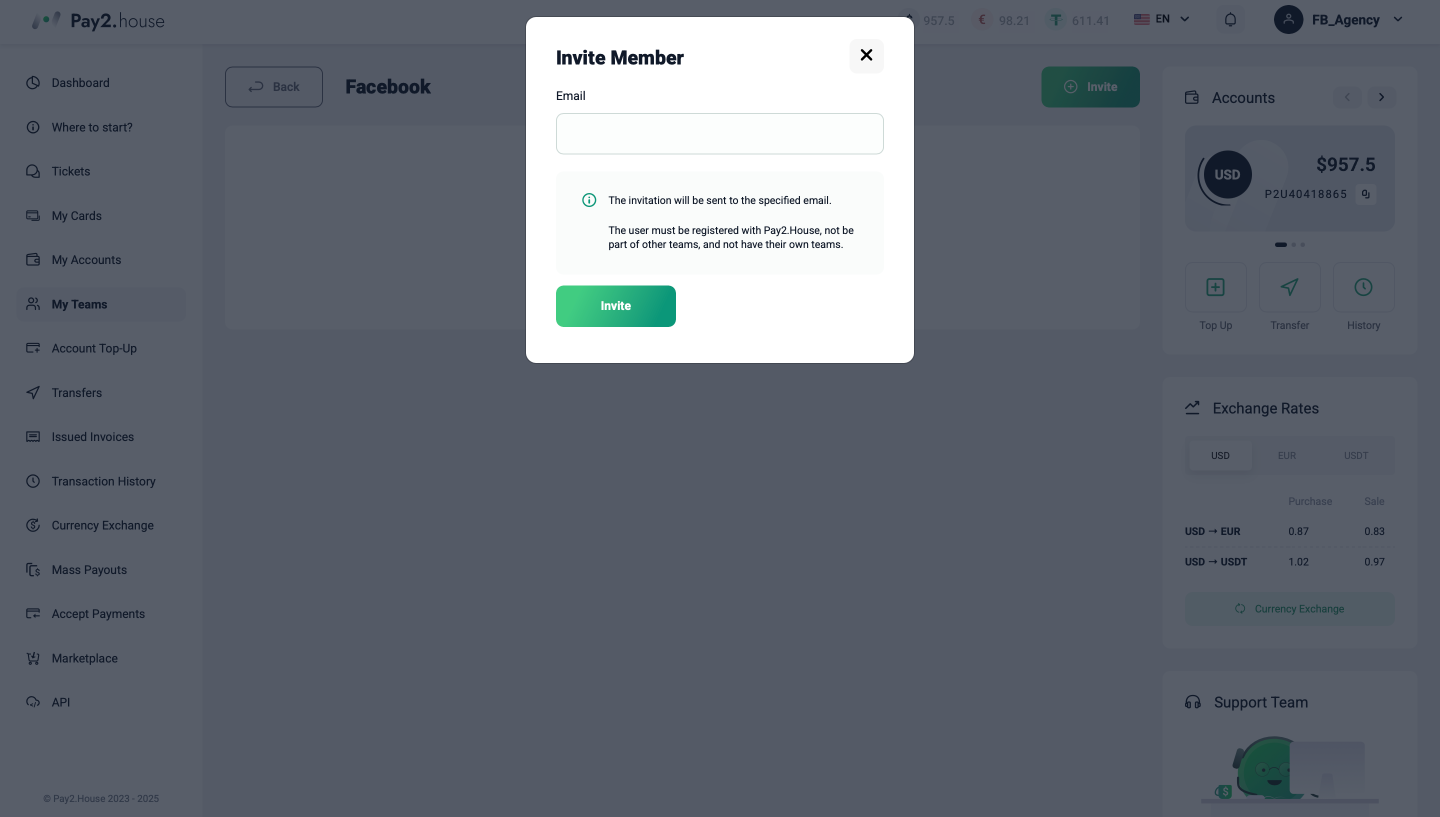
On the screenshot you can see:
-
The email input field.
-
A hint with the conditions (so that the invitation goes through successfully).
-
The Invite button.
After sending, the invitation is recorded in the list. In the columns you can see:
-
The participant’s email.
-
The invitation date.
-
Status – it’s dynamic: “Invitation sent,” “Joined the team,” or “Removed from the team.”
-
Balances for cards and accounts – so far 0.00 (USD/EUR/USDT).
On the participant’s side, a window appears with a choice: green button Accept or red button Decline. At this moment the user has the right to decide whether to join the team.
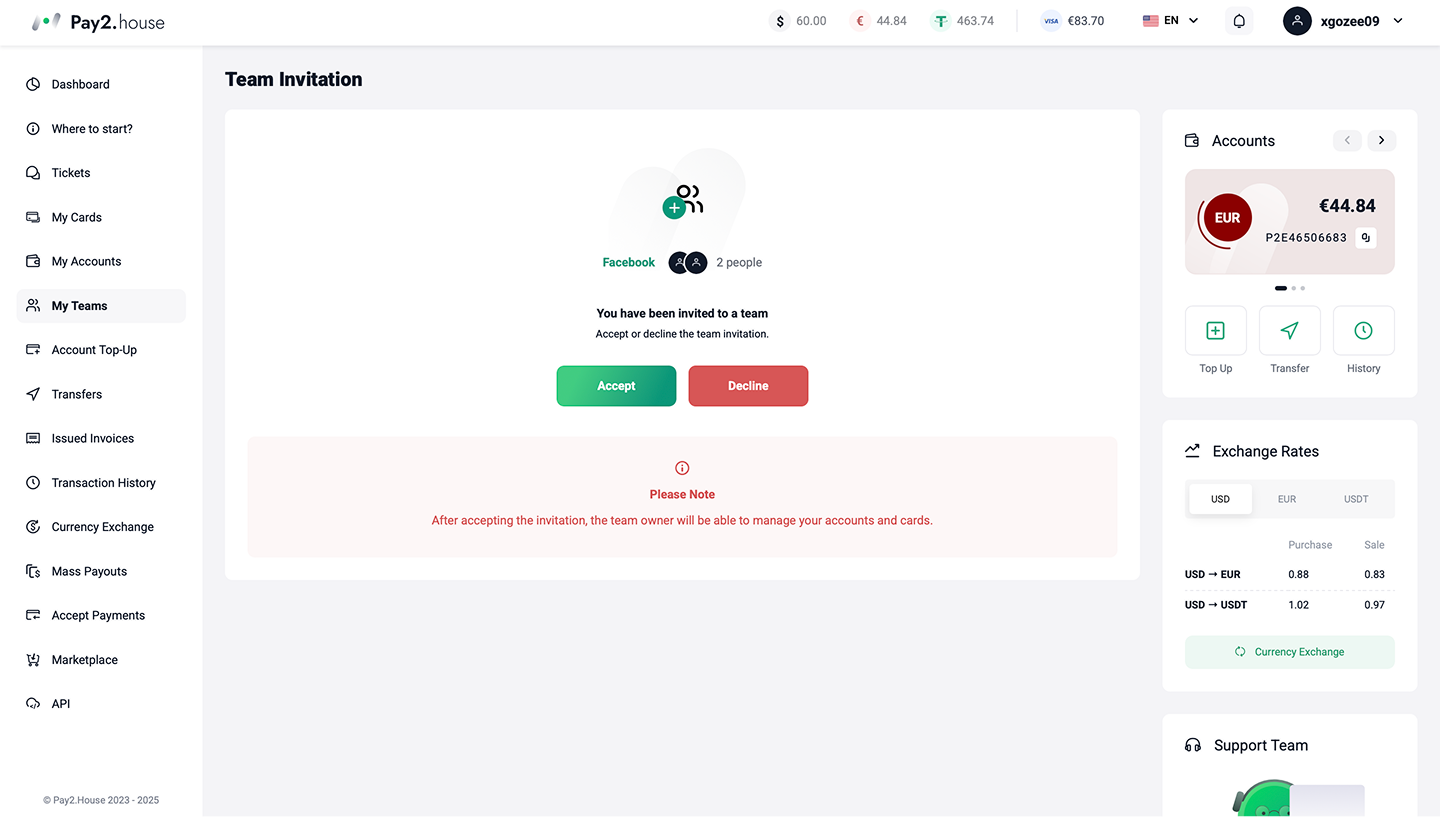
After the invitation is accepted, the status is updated, and the participant sees the message “You are a team member.” From this moment, they gain access to working with accounts and cards within the rights granted to them.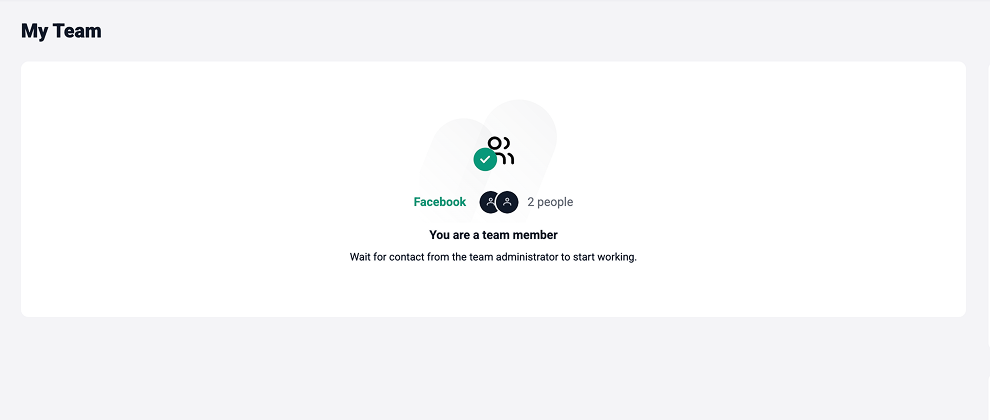
Thus, the process from sending the invitation to confirming participation looks as transparent and intuitive as possible.
Step 3. Managing teams and statuses
On the main page of the My Teams section, a list of all created groups appears. Each team has a date, ID, name, status, and number of members.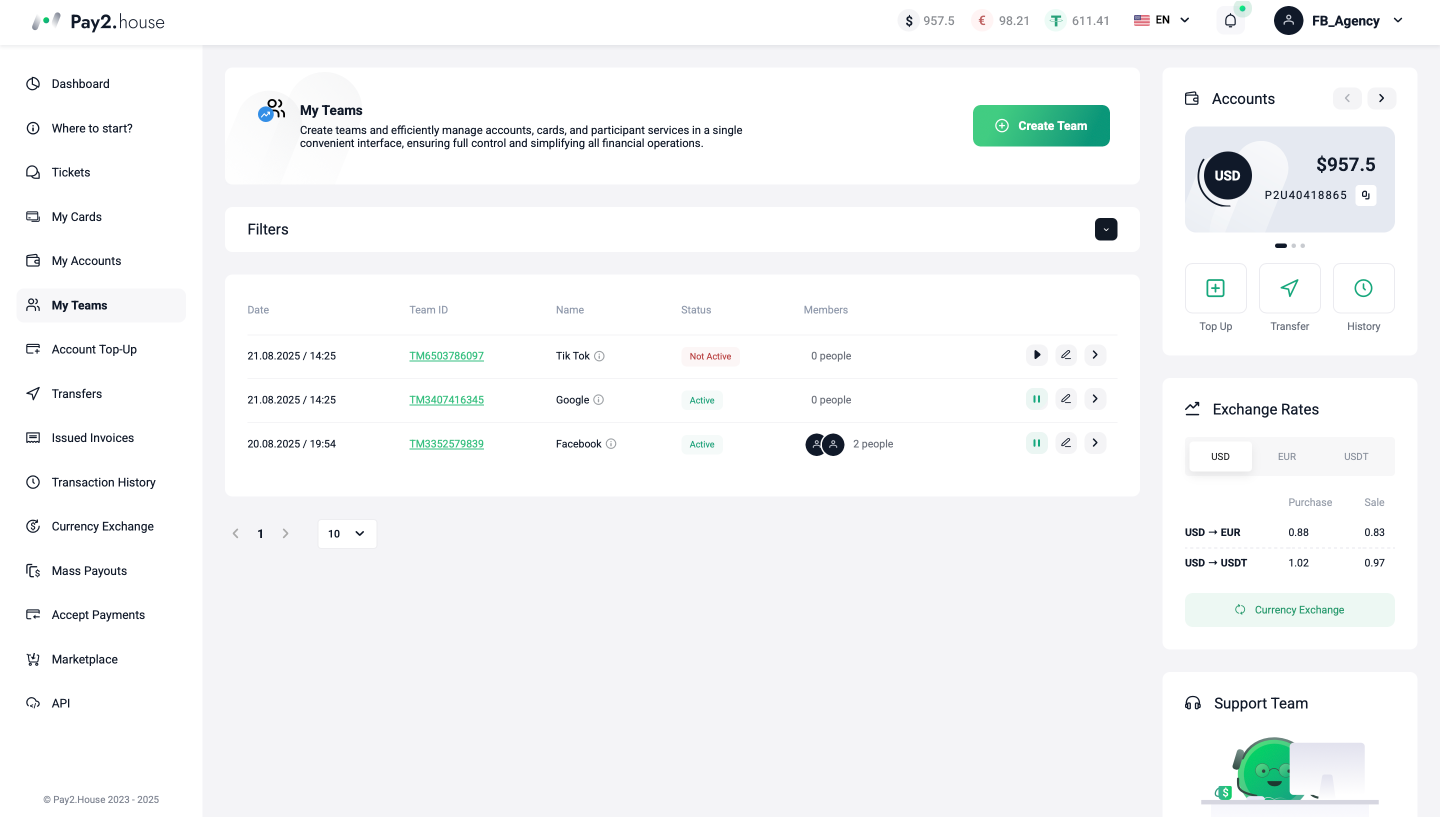
What the control elements mean:
-
Team ID – clickable, leads to detailed team information.
-
Status – shows whether the team is active or paused.
-
Pause icon – temporarily pauses the team’s work.
-
Edit icon – allows you to change the name or description.
-
Go icon – transition to the team’s interface.
This way the team leader sees all their teams and can manage them quickly from one window.
Step 4. Managing a participant
Clicking on the participant’s icon opens their profile.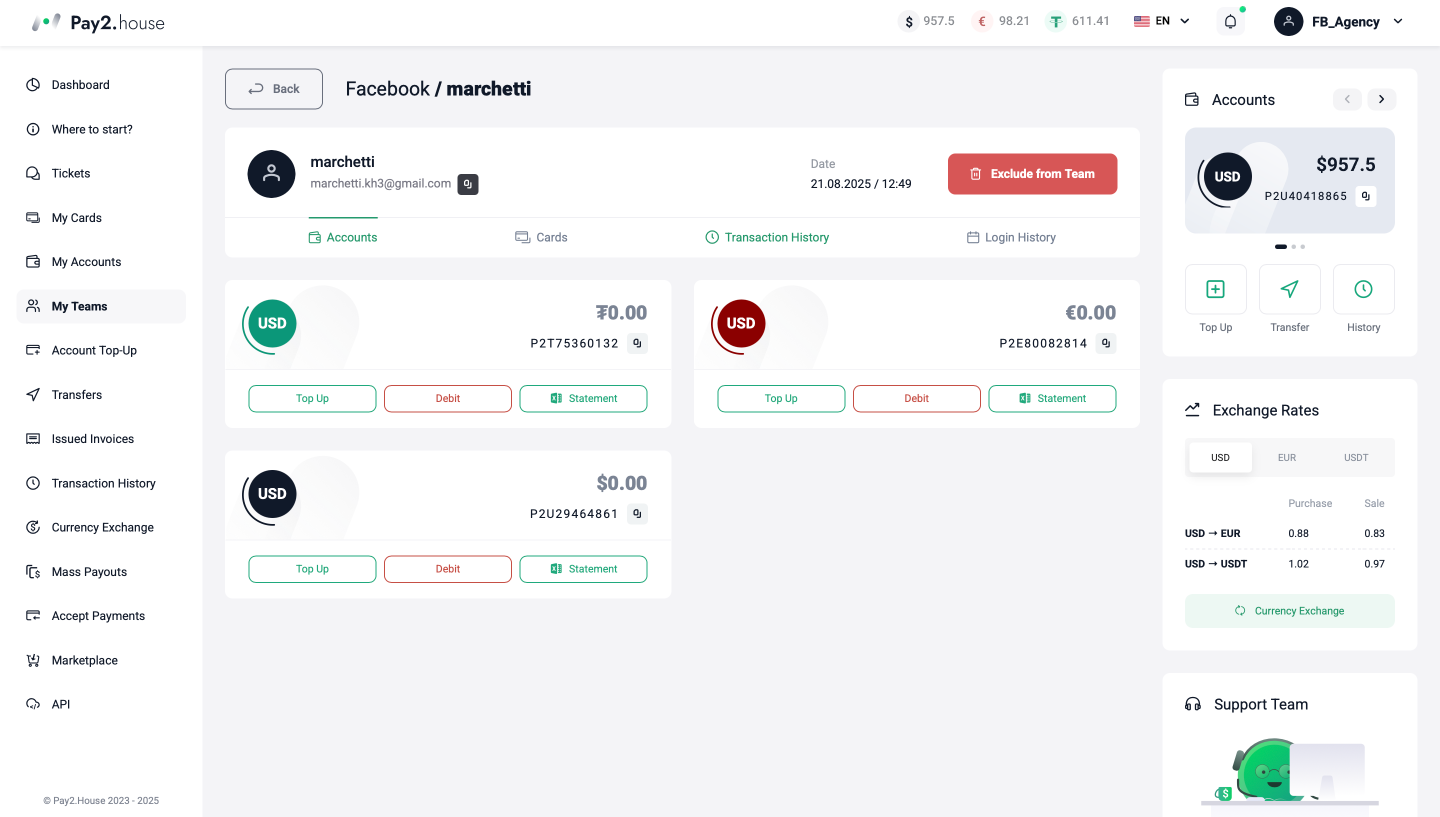
The screen shows:
-
Accounts block: each account (USD/EUR/USDT) has Deposit, Withdraw, Statement buttons.
-
Cards block: management of the participant’s virtual cards.
-
Transaction history tab: list of account transactions (USD/EUR/USDT). The history for each card can be viewed separately in the card’s interface.
-
Authorization log tab: shows which devices and through which channels the user logged into the account.
-
Remove from team button – instant disconnection of the participant.
Step 5. Removing a participant from the team
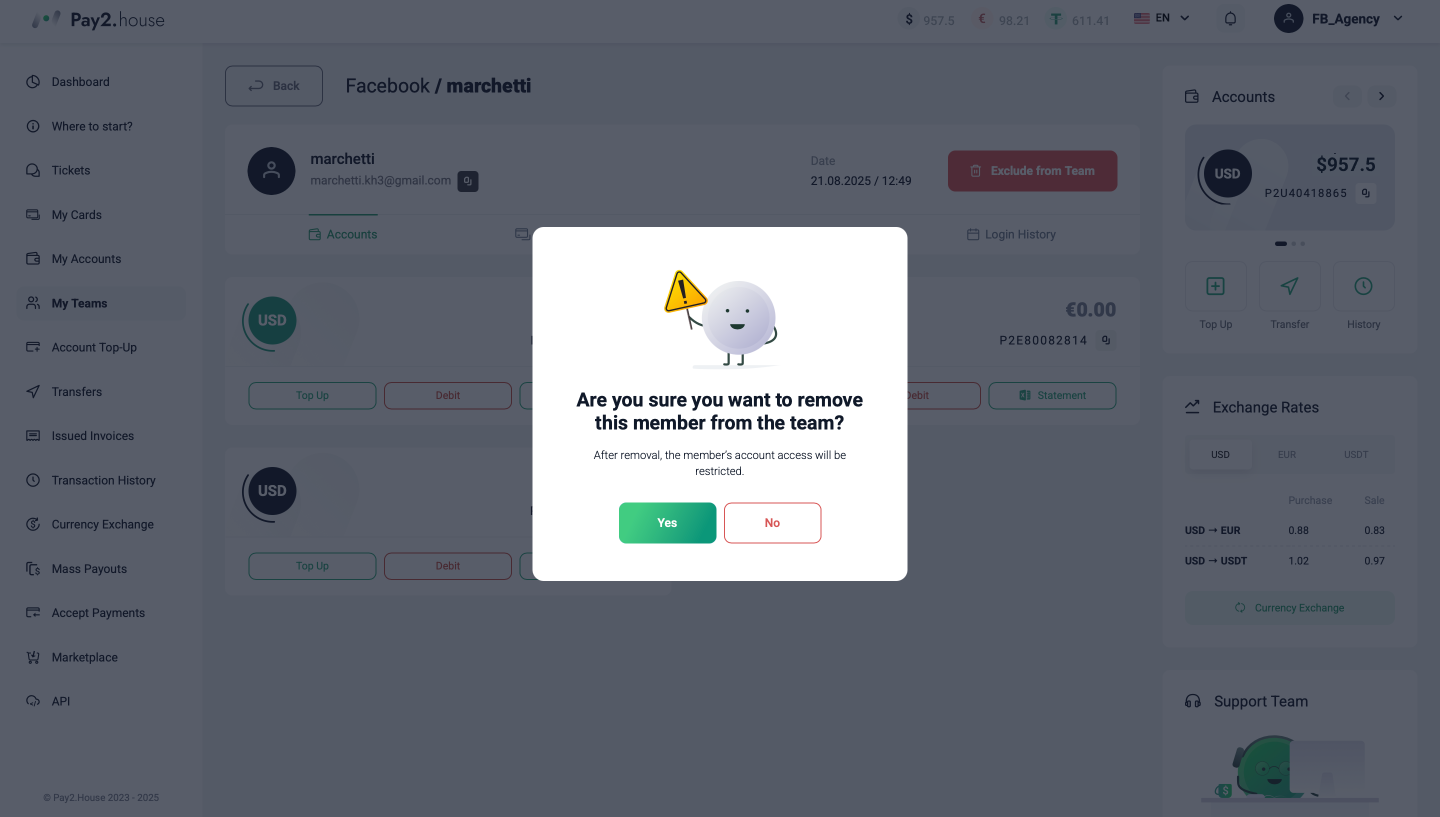
If the team leader clicks Remove from team, a confirmation window appears. After removal:
-
the participant completely loses access to the personal account,
-
the interface is blocked, Pay2.House functions become unavailable to the participant (accounts, cards, transaction history, and other functions),
-
access can be restored with one click (the “Restore to team” button).
How it looks:
-
On the team leader’s side – a pop-up window appears confirming the deletion. After confirmation, the participant disappears from the team, and the “Restore to team” button becomes active.
-
On the participant’s side — the account becomes completely blocked. All interface sections become unavailable, service functions stop working.
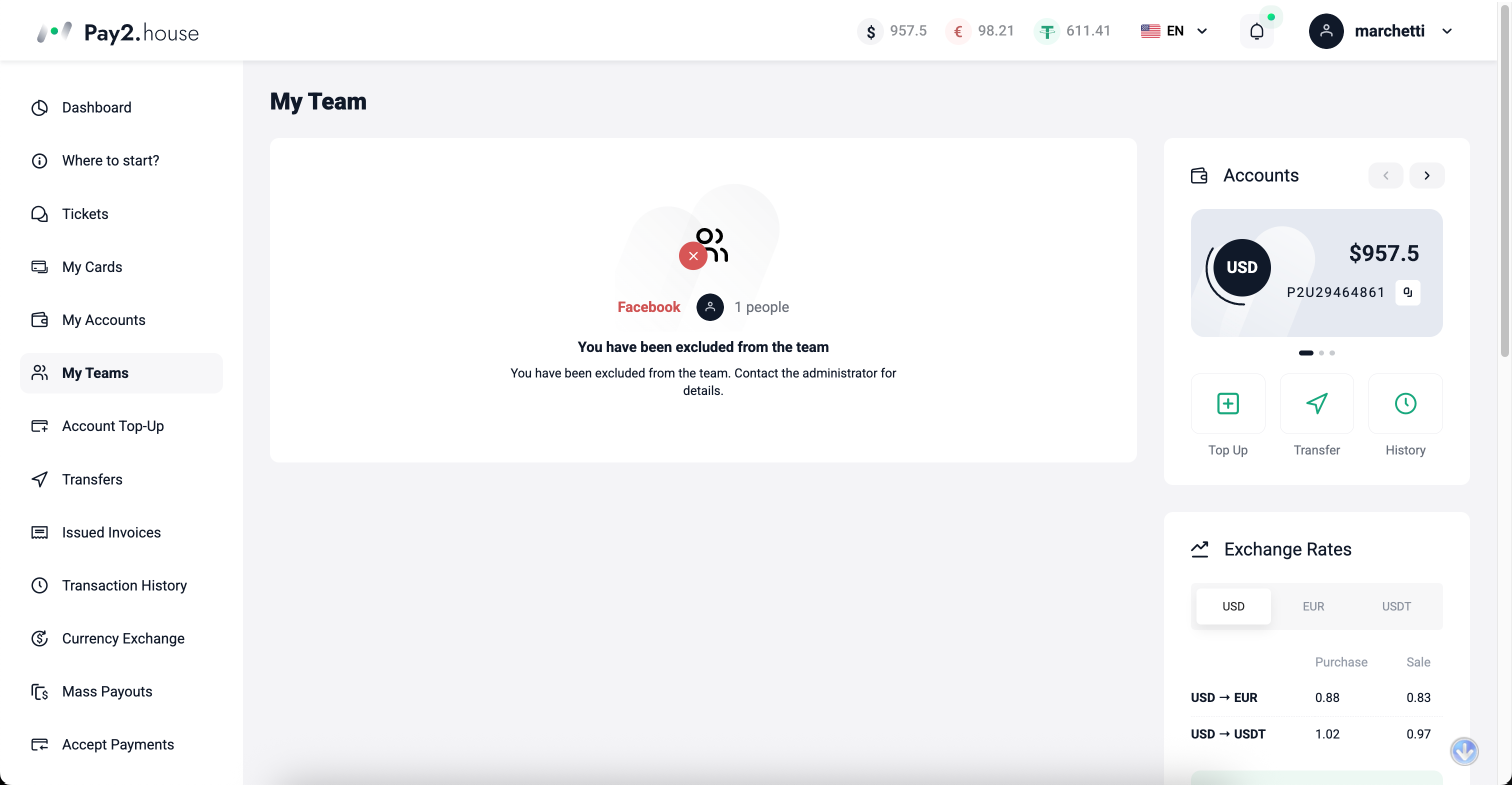
This step protects the team from unauthorized actions if the participant should no longer have access.
How to optimize teamwork: tips for team leaders
-
Convenient naming. Names like “FB – US,” “Google – EU” help to navigate quickly.
-
Separate budgets. A separate account and card for each buyer – transparency and control.
-
Work fast. Issuing a card or making a deposit takes seconds. No delays.
-
Offboarding. Before removing a participant, export the statement. Everything is recorded.
FAQ
- Can one participant be issued multiple cards?
Yes, a participant can issue any number of cards independently, within the budget allocated to them. The team leader deposits to the participant’s account, and they manage the cards in their own interface. A 20% discount applies for orders of 100+ cards. - Can you see participant logins and activity?
Yes, the authorization log records devices, IPs, and login channels – this helps track each participant’s actions. - What happens if you remove a participant?
They lose access to all account functions: accounts, cards, transactions. The interface is blocked, and funds remain in the team. - How quickly does a participant gain access after invitation?
Immediately after confirming the invitation – they see the account, can issue cards, and work within the limits. - Can budgets be allocated in different currencies?
Yes. The team leader can deposit USD, EUR, and USDT accounts separately – convenient when working with different traffic sources and ad platforms.
Conclusion
The “My Teams” feature is not just an interface update. It’s a tool that solves the pain points of the team leader and makes team work structured.
-
See expenses in real time.
-
Manage money centrally.
-
Save hours on routine tasks.
Try creating a team right now and see how much easier it has become to manage processes. Pay2.House makes your team stronger.


 Telegram
 Email
Email









soegyi
Where is base company?Our for Trusted?