



When a card is used for regular payments, it is important to keep enough funds available for upcoming transactions. Checking the balance and topping up cards manually is not always convenient, especially when you manage several cards at the same time.
Pay2.House offers a Card Auto Top-Up feature for this purpose. You choose the funding account, set a balance threshold and specify the top-up amount. When the card balance reaches the selected value, the system automatically adds funds from the chosen account.
In this guide, we explain how to enable Card Auto Top-Up, configure the settings correctly, check completed top-ups and disable the feature when needed.
Before You Start
To configure Card Auto Top-Up, you need to have an active Pay2.House card.
If you are new to the service and have not issued a card yet, start with our guide “How to Start Using Pay2.House: A Step-by-Step Guide After Registration”.
It explains how to fund your account, select the required currency, issue your first virtual card and add funds to it.
How to Enable Card Auto Top-Up
Open the “Cards and Accounts” section in your Pay2.House account and select the card for which you want to configure automatic top-ups.
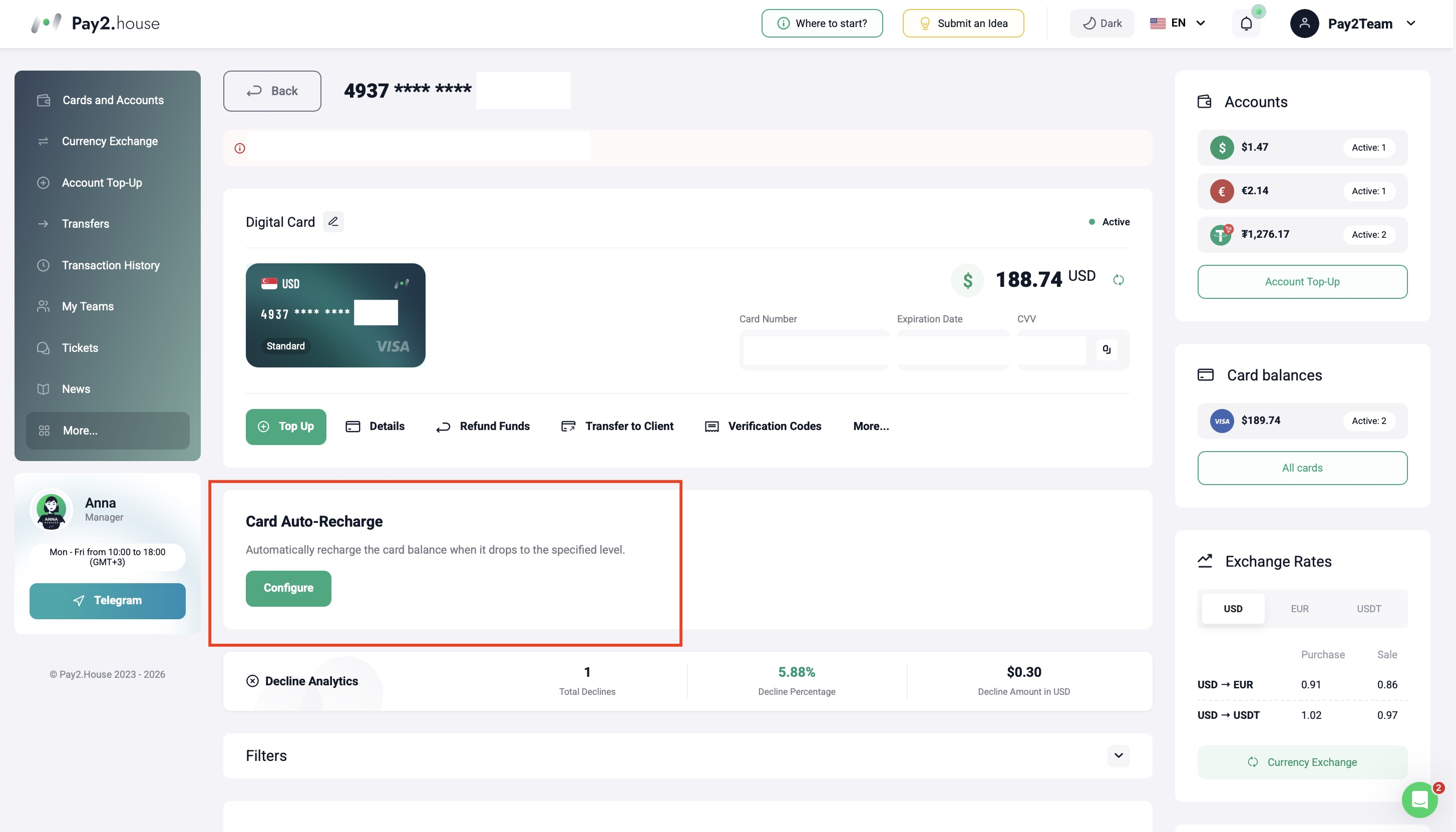
Find the “Card Auto Top-Up” section under the selected card and click “Set Up”.
You will need to configure three parameters:
- Funding Account
- Balance Threshold
- Auto Top-Up Amount
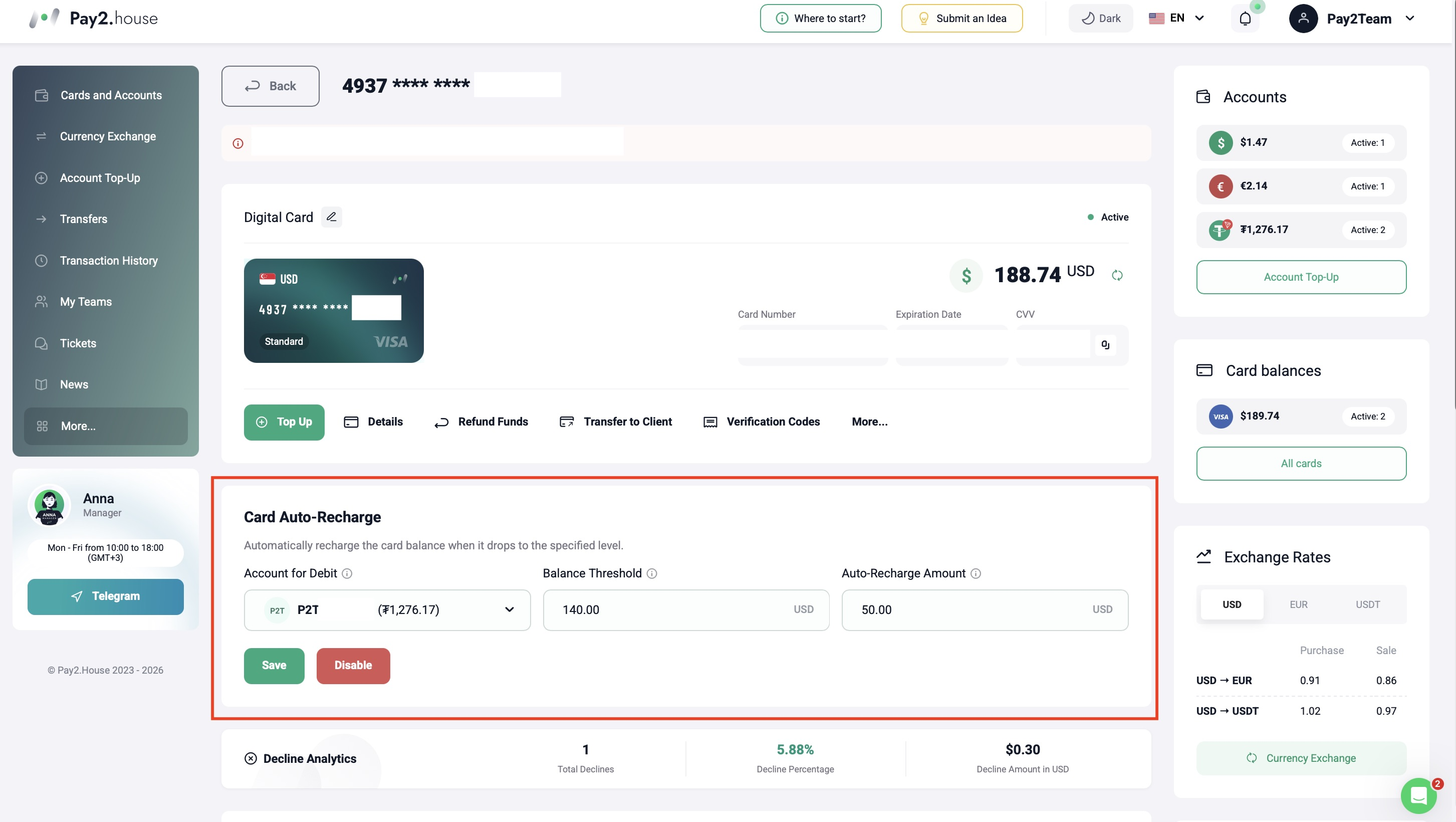
1. Funding Account
In the “Funding Account” field, select the Pay2.House account from which funds will be automatically debited to top up the card.
For a card in USD, you can select an available account in USD or USDT. If you are configuring automatic top-ups for a card in EUR, the corresponding EUR account will be available.
Funds will be debited from this account each time Card Auto Top-Up is triggered.
2. Balance Threshold
In the “Balance Threshold” field, enter the card balance at which the automatic top-up should be triggered.
For example, if you set the balance threshold to 50 USD, Card Auto Top-Up will be triggered when the card balance reaches 50 USD or falls below this amount.
3. Auto Top-Up Amount
In the “Auto Top-Up Amount” field, specify the amount that should automatically be added to the card when the balance reaches the selected threshold.
For example:
- Balance Threshold: 50 USD
- Auto Top-Up Amount: 100 USD
When the card balance reaches 50 USD or falls below it, the system will automatically top up the card by 100 USD.
The minimum card top-up amount in Pay2.House is 50 USD for USD cards and 50 EUR for EUR cards. This means that you cannot set an automatic top-up amount of 10 or 20 USD, for example.
If you enter an amount below the available minimum, the system will not allow you to save the settings.
After completing all fields, click “Save”.
How to Check That Card Auto Top-Up Is Active
After the settings are saved, Card Auto Top-Up will be activated for the selected card.
You can check its status directly in the “Card Auto Top-Up” section. The active status will be displayed in the upper right corner, and the “Disable” button will become available in the settings.
If these elements are displayed, the feature has been successfully activated.
When Card Auto Top-Up Is Triggered
Card Auto Top-Up does not happen at the exact second when the card balance reaches the selected threshold.
The system needs a few minutes to check the card balance and process the automatic top-up. Once the threshold has been reached, wait a few minutes for the funds to be added automatically.
How to Check Auto Top-Ups in Transaction History
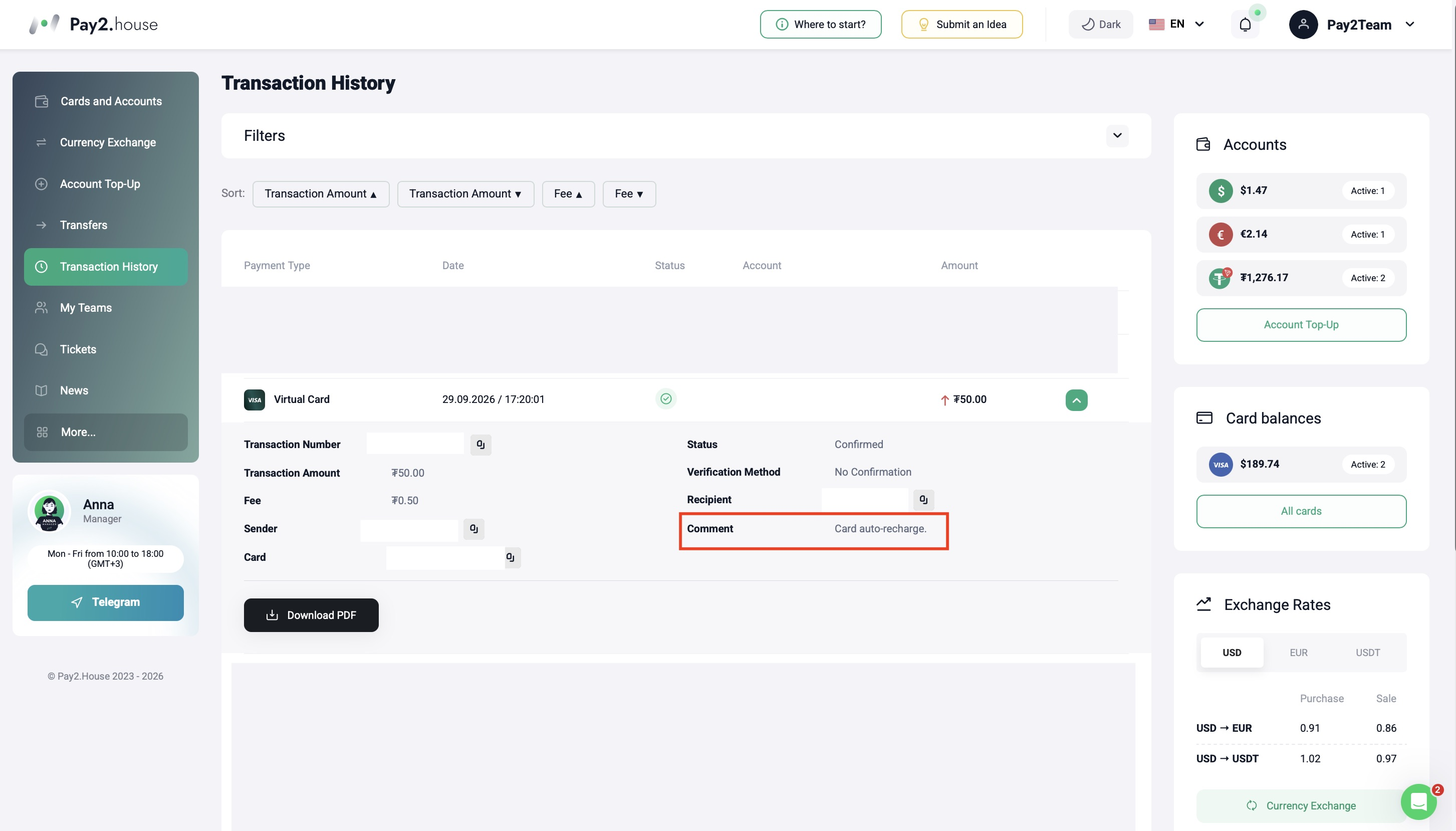
All completed automatic top-ups can be tracked in the “Transaction History” section of your Pay2.House account.
After Card Auto Top-Up is triggered, the corresponding transaction will appear in the general transaction history. Automatic card top-ups are displayed as Card Auto Recharge.
This allows you to check completed automatic top-ups and view them together with other transactions in your account.
How to Disable Card Auto Top-Up
You can disable Card Auto Top-Up at any time.
- Open the required card.
- Go to the “Card Auto Top-Up” section.
- Open the feature settings.
- Click “Disable”.
After the feature is disabled, automatic top-ups will no longer be performed for the selected card.
Summary
To configure Card Auto Top-Up in Pay2.House, select a funding account, set the balance threshold, specify the automatic top-up amount and save the settings.
Once configured, the system will automatically add funds to the selected card when its balance reaches the specified threshold. Completed top-ups can be checked in “Transaction History”, where they are displayed as Card Auto Recharge.
Card Auto Top-Up helps reduce manual card management and makes it easier to maintain sufficient balances for regular payments.


 Telegram
 Email
Email



Be the first to share your opinion!
We value your feedback—share your thoughts.