


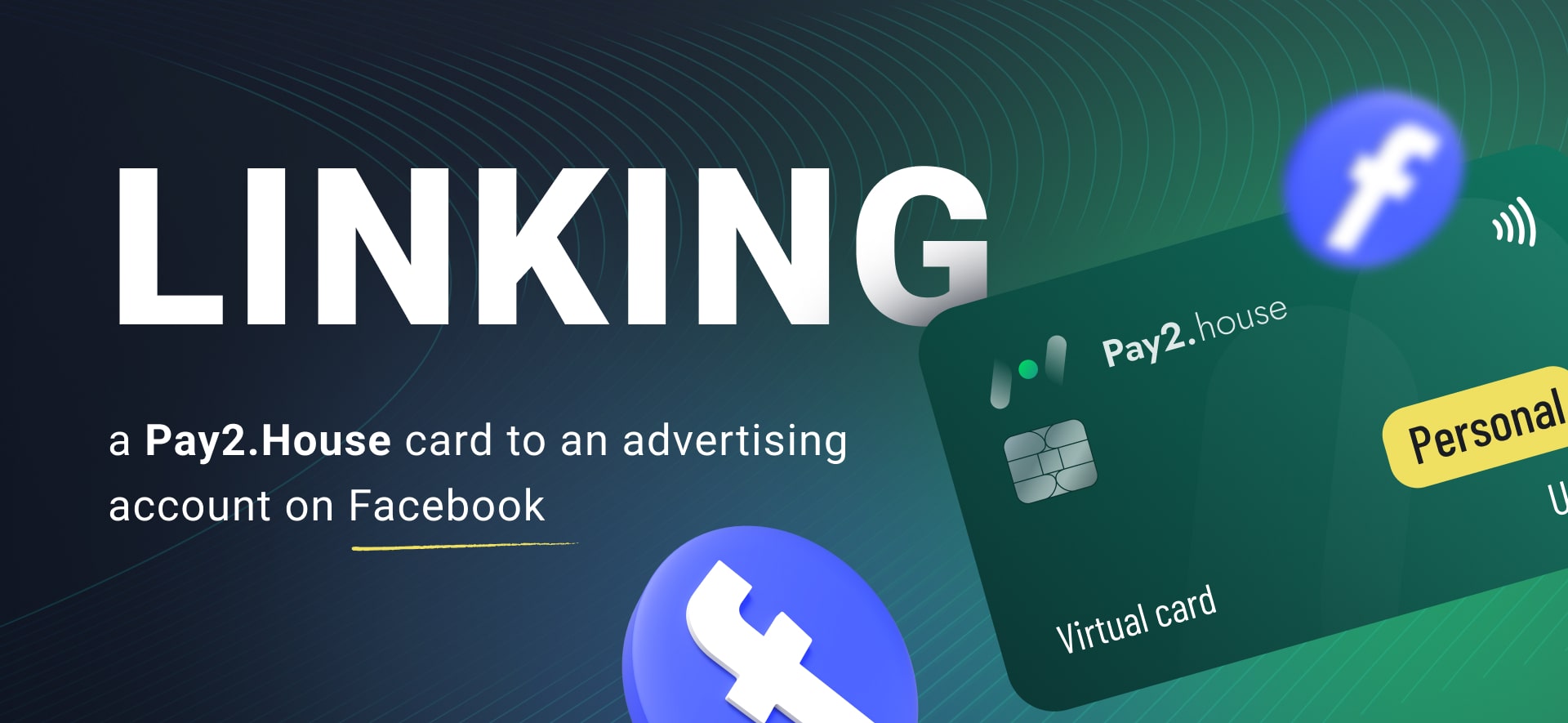
Facebook Ads is one of the key advertising platforms where thousands of campaigns are launched every day to promote products and services. If you are a media buyer, a targeting specialist, or a business owner looking to set up ads, the first step is correctly linking a payment card to your ad account. Linking a card to the ad account is a crucial stage without which it’s impossible to launch campaigns and manage budgets.
In this guide, we’ve prepared a detailed step-by-step tutorial to help you easily link a virtual Pay2.House card to Facebook Ads and start running your campaigns right away.
Card Issuance in Pay2.House
Before issuing a card, make sure your account is funded. Then go to the “My Cards” section and click the “Issue Card” button in the top right corner.
At the next step, you need to choose the appropriate card. For launching ads on Facebook Ads, the “Standard” category of cards is used. In Pay2.House, cards are available from two countries — Hong Kong and the United Kingdom.

In this guide, we will look at the process using UK cards as an example. To issue a card, click the “Issue Card” button under the selected card.
After selecting the BIN and card category, the system will prompt you to fill out a short form. Here you need to enter basic details — first name, last name, phone number, and email. You can also allow automatic withdrawals from your main account to renew the card.

Next, you need to choose the account for the withdrawal and the method of confirming the operation. After that, check the box to agree with the terms of use and click the “Next” button.
At the final step, you need to confirm the operation. The system will request a one-time code from the Google Authenticator app. Enter the six-digit code and click the “Confirm” button.

Accessing Ads Manager

After issuing and activating the card, you can proceed to use it in Facebook Ads. On the main Facebook page, find the “Ads Manager” section in the left-hand menu and click on it. This is the workspace where we will set up ad payments and link our Pay2.House card.
After opening Ads Manager, you need to go to the payment settings. To do this, find the card icon in the left-hand menu and hover over it. In the dropdown list, select “Billing & Payments.”


In the “Billing & Payments” section, a page with payment settings will open. In the “Payment Methods” block, click the “Add Payment Method” button.
After selecting to add a payment method, a window with payment information settings will open. Here you need to choose:

-
Country/Region — you can specify any; this does not affect the card’s functionality.
-
Currency — it must match the currency of your Pay2.House card (if your card is in USD, then select USD in Facebook Ads; if it’s in EUR, select EUR).
-
Time Zone — set your actual time zone for correct statistics display and campaign performance.
Once completed, click the “Next” button.
At the next step, select “Debit or Credit Card” as the payment method. Then enter the details of the card you issued in Pay2.House:

-
Cardholder’s Name — media buyers usually enter the same data as on their Facebook account page.
-
Card Number, Expiration Date, and CVV — these details are available in your Pay2.House personal dashboard.
After filling in all the fields, click the “Save” button. The system will verify the card, and if all the information is entered correctly, it should successfully link to your ad account.
As we can see in the screenshot, the card has successfully passed verification in Facebook and now appears in the list of payment methods. From this point on, you can use it to launch ad campaigns and manage budgets directly through Ads Manager.
Linking a card is a mandatory step for launching ads in Facebook Ads, and with Pay2.House virtual cards this process is quick and hassle-free. Our cards ensure stable payments, high approval rates thanks to trusted BINs, and protection through a built-in anti-fraud system. All of this allows you to run ads with confidence and focus on results, instead of dealing with technical payment issues.

The instructions are now in your hands — the next step is yours. Get your Pay2.House card and start launching campaigns.


 Telegram
 Email
Email







Teilen Sie als Erster Ihre Meinung!
Ihre Meinung ist uns wichtig — teilen Sie uns Ihre Gedanken mit.