


How to Pay for Gemini AI with a Pay2.House Card
Google Gemini has become one of the most popular AI tools for working with text, code, analytics, content, and documents. It is used by marketers, affiliate teams, entrepreneurs, developers, and specialists who need quick access to artificial intelligence features.
The basic version of Gemini is available for free, but Google offers paid AI plans for advanced features. For example, Google AI Pro provides extended access to AI features, Gemini in Google products, additional cloud storage, and other benefits.
In this article, we will explain how to pay for Gemini with a virtual card from Pay2.House, how to prepare the card for payment, and what to check if the payment does not go through on the first attempt.
What you need to pay for Gemini
To pay for Gemini, you usually need a personal Google account, access to Google One or Gemini, and a payment card that can be added when purchasing the subscription.
It is important to understand that Google makes its own decision for each payment. The result may depend on the account country, payment profile, account history, Google Payments settings, and other factors. That is why no payment card can guarantee a successful payment in every case.
The purpose of Pay2.House is to provide a convenient payment tool for online services, subscriptions, and AI tools. After that, it is important to prepare the card correctly and complete the payment carefully.
Why Pay2.House is convenient for Gemini payments
If you regularly pay for AI services, ad accounts, subscriptions, and SaaS tools, a regular personal card is often not enough. Expenses get mixed together, budgets become harder to control, and team workflows create additional confusion.
Pay2.House helps separate payments by task: you can issue a separate virtual card for Gemini, another card for advertising platforms, another card for SaaS services, and control each budget separately.
This is especially useful for teams that use AI tools in daily work: generating creatives, analyzing funnels, preparing texts, working with spreadsheets, code, and documents.
Step 1. Register with Pay2.House
First, create a Pay2.House account and confirm your email. After logging in to your personal account, you will be able to work with accounts, top up your balance, issue virtual cards, and manage payments in one interface.
KYC verification is required to issue cards. This is a standard security measure that helps protect the account, payments, and service infrastructure.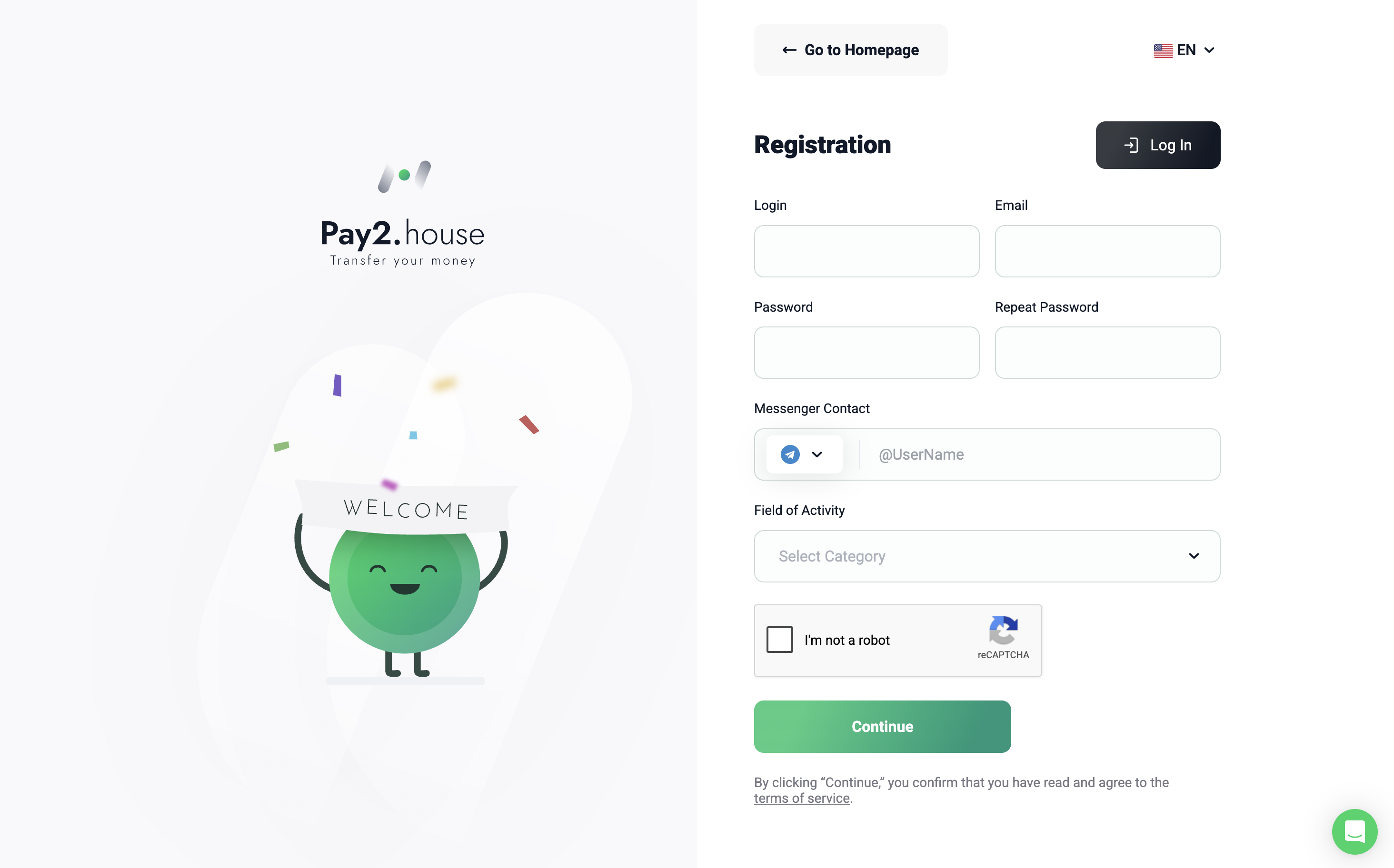
Step 2. Top up your account balance
Before issuing a card, you need to top up your main Pay2.House balance. For a starting scenario, prepare at least 52 USDT and a small extra amount to cover card issuance, fees, and the future card top-up.
Top-up is available through the supported methods in your personal account. After the funds are credited, they will appear on your main account balance.
Important: the account balance and the card balance are not the same thing. First, you top up your account, then issue a card, and then top up the card separately. The Gemini payment will be made from the card balance, not directly from the main account balance.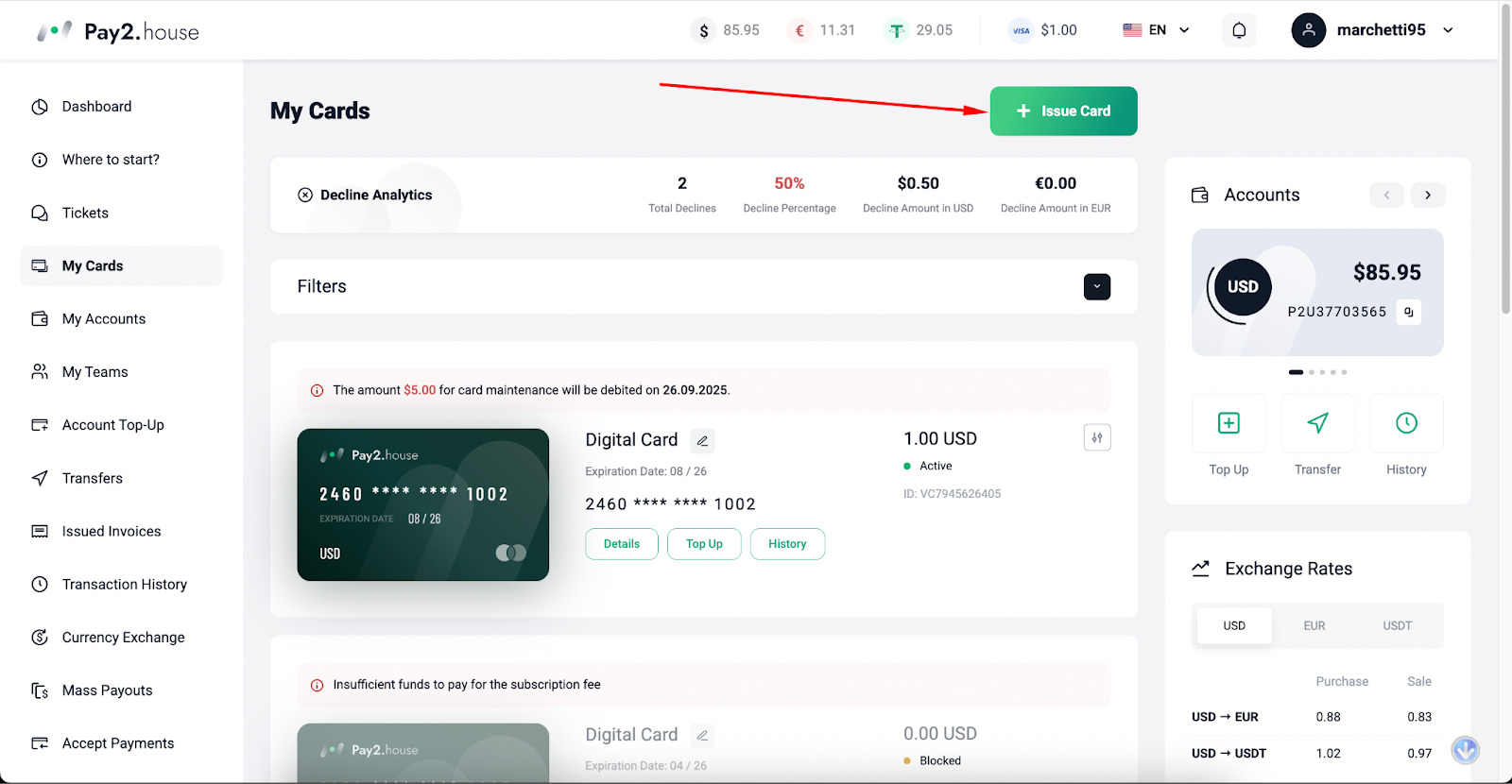
Step 3. Issue a virtual card
After topping up your balance, go to the cards section and choose a suitable virtual card for online payments. Before issuing the card, the interface will show the terms and fees for the selected card.
It is better to use the card intentionally: for one service or one group of similar services. For example, you can issue a separate card only for Gemini and other Google subscriptions. This makes it easier to control expenses and understand which charges belong to a specific tool.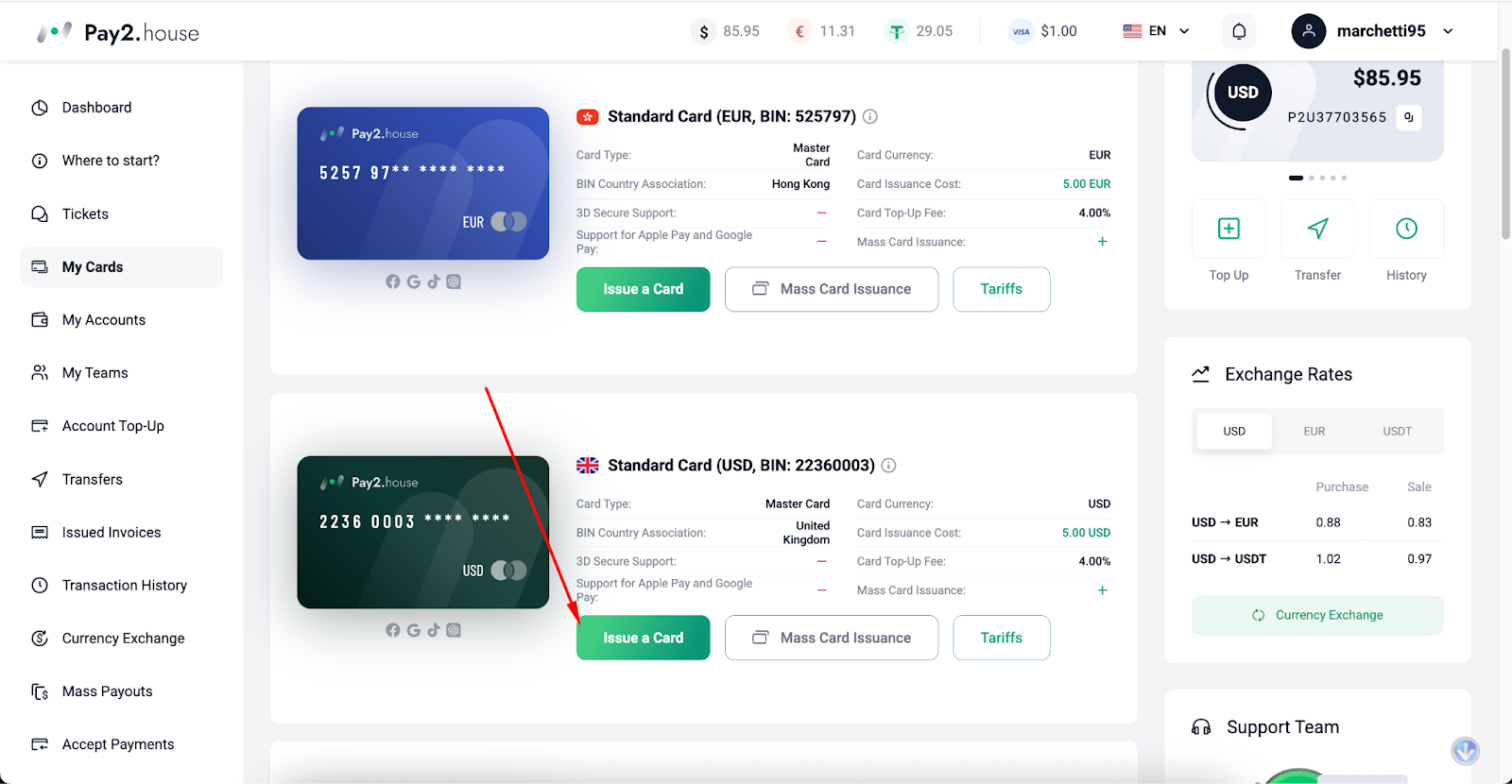
Step 4. Top up the card
After issuance, the card is created with a zero balance. To pay for Gemini, you need to top it up.
The minimum card top-up is 50 USD or 50 EUR, depending on the card currency. It is better to top up the card with a small reserve rather than exactly the subscription amount. This reduces the risk of a decline due to a fee, currency conversion, or an additional check by the service.
If you have a bonus balance, first make sure that the funds are available for the required action. If the bonus needs to be used for card issuance, convert USDT to your USD balance in advance, since bonuses are applied only to USD accounts.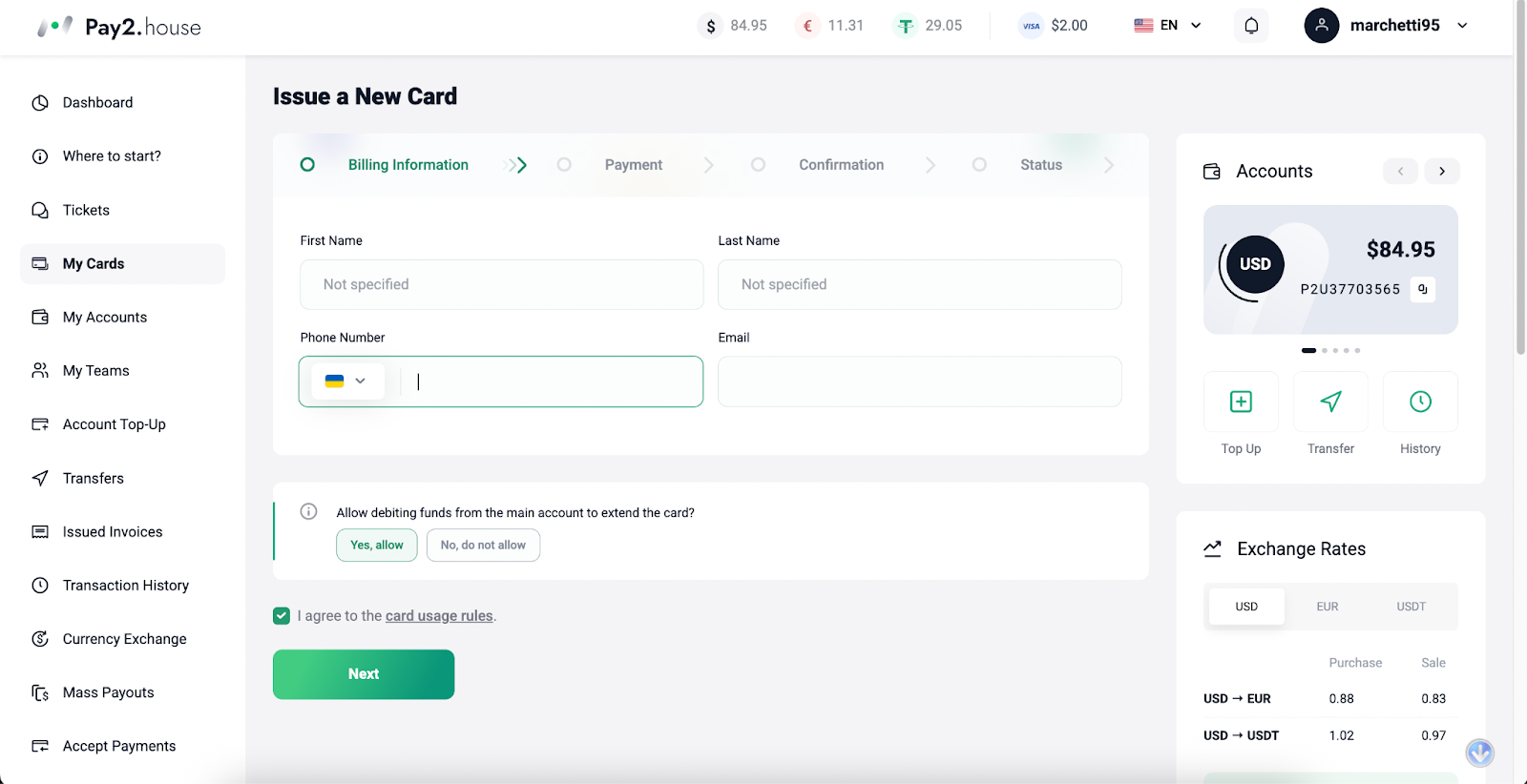
Step 5. Go to Gemini or Google AI Pro checkout
Open Gemini or Google One and choose the AI plan you need. Google may offer different subscription options depending on the country, account, and current conditions.
The usual flow is:
- sign in to your Google account;
- open Gemini or Google One;
- choose the suitable AI plan;
- go to checkout;
- add your Pay2.House card as a payment method;
- confirm the subscription.
Before payment, check that the payment profile country, account details, and payment information are filled in correctly. Errors in the payment profile may lead to a decline even if the card itself is working.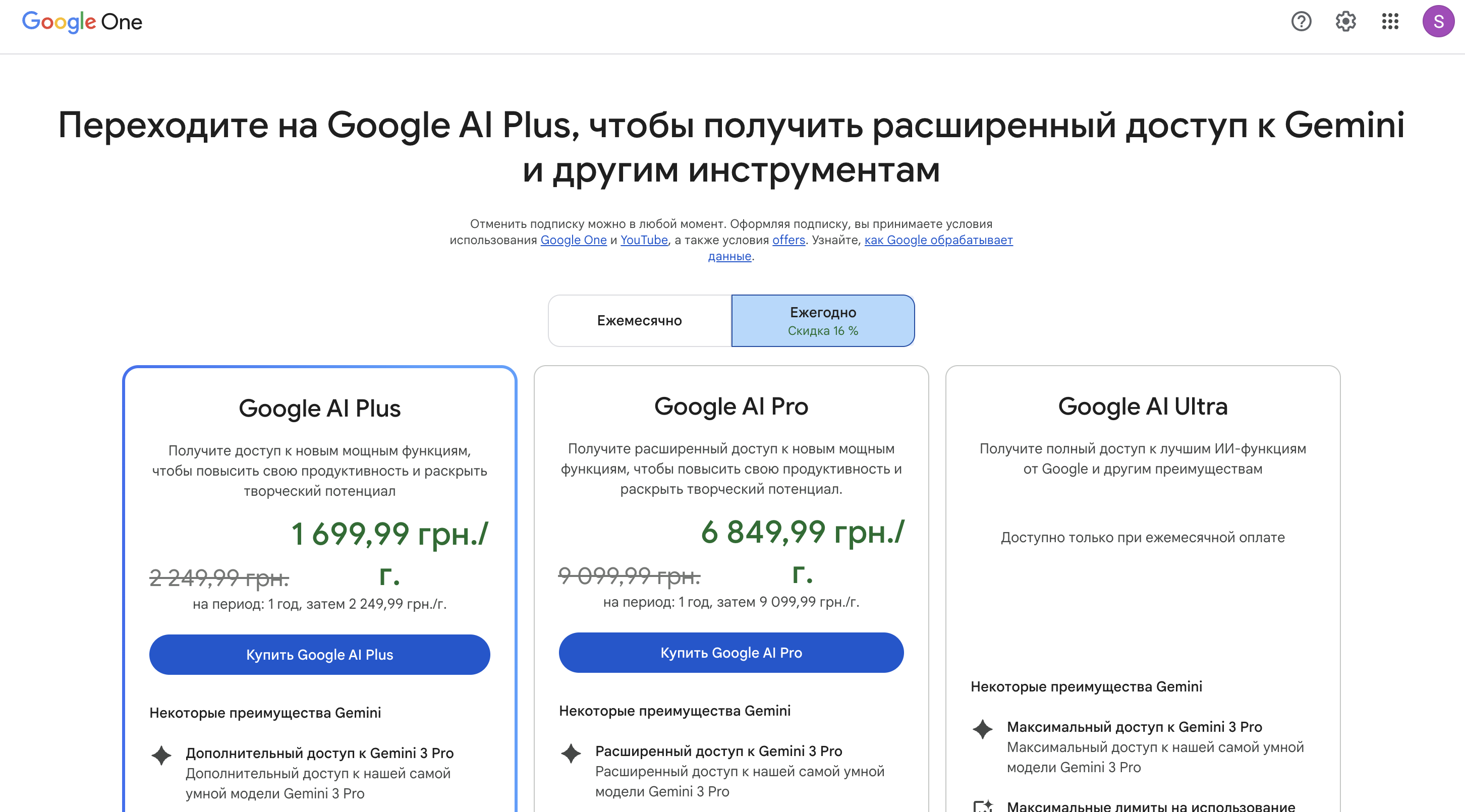
Step 6. Enter the card details
When adding a card, Google usually asks for standard details:
- card number;
- expiration date;
- CVV;
- cardholder name;
- billing address;
- postal code.
Use real and correct data. For the billing address, it is important to enter a valid address for the country used in your payment profile. Do not chaotically change the country, address, and card after every error - this behavior may increase the risk of additional checks.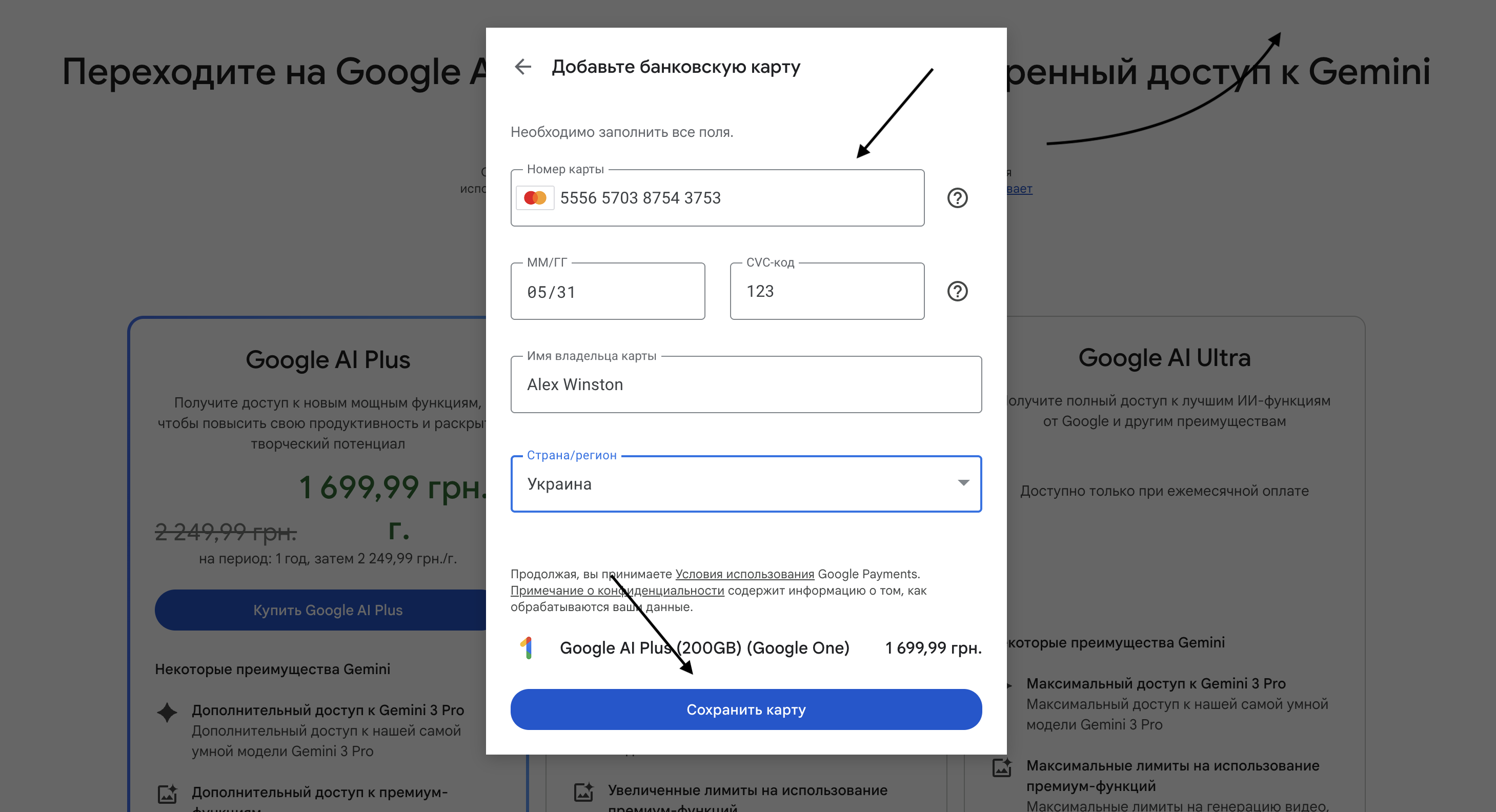
Step 7. Confirm the payment
After adding the card, Google may immediately charge the subscription cost or make a verification transaction. If 3D Secure is required, the confirmation code will be available in the Pay2.House interface near the card details or in the operation history.
Do not make many repeated attempts in a row if the first payment does not go through. It is better to check the card balance, payment profile details, and operation status, and then repeat the payment carefully.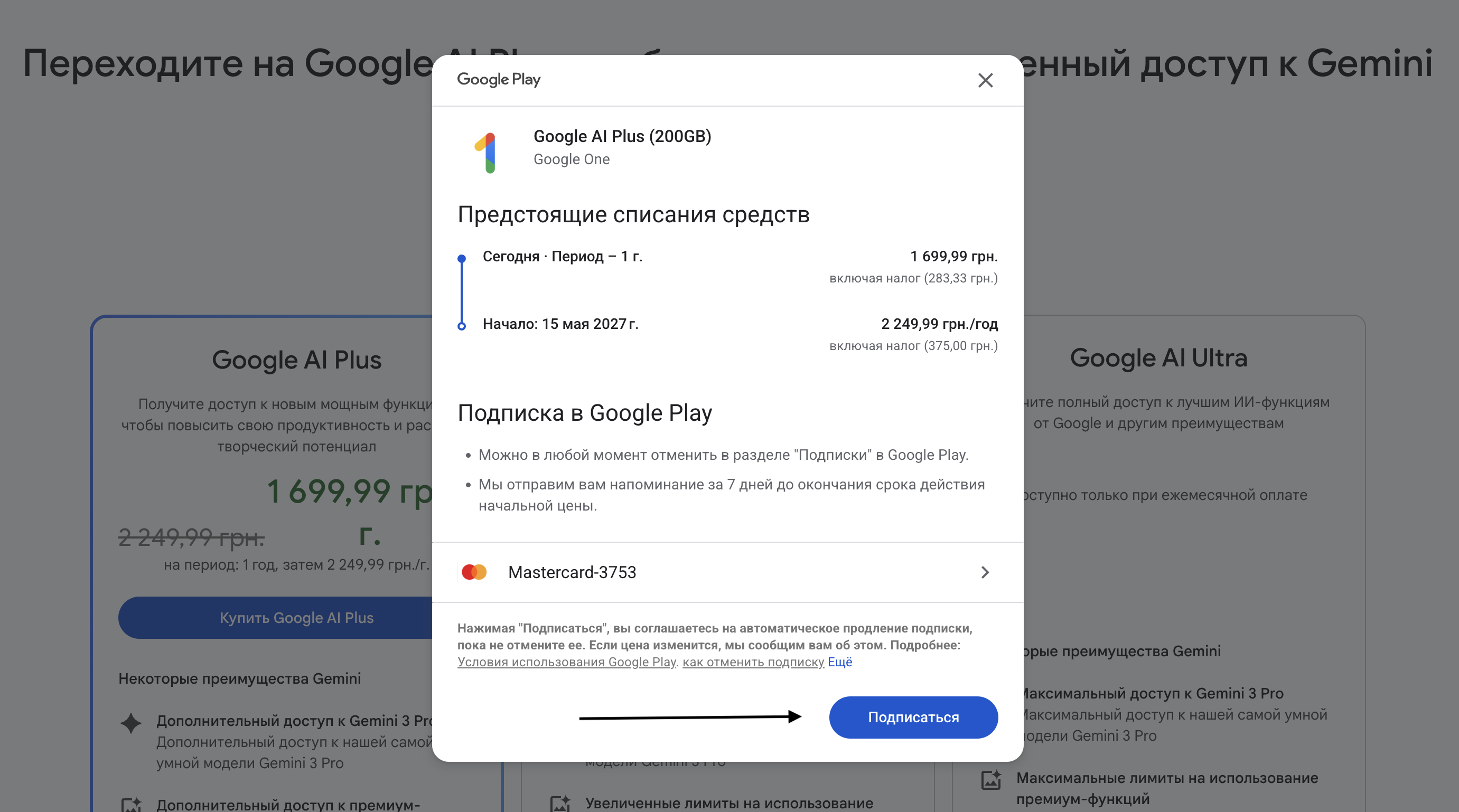
What to do if the Gemini payment failed
A declined payment does not always mean that the problem is with the card. Google may decline a payment for different reasons: payment profile, account country, payment history, subscription settings, or internal verification rules.
If the payment failed, check:
- whether there are enough funds on the card balance;
- whether there is an error in the card number, expiration date, or CVV;
- whether the billing address is entered correctly;
- whether the payment profile country matches the chosen payment scenario;
- whether there were too many payment attempts in a row;
- whether confirmation via 3D Secure is required.
If you see repeated declines, it is better to stop the attempts and contact Pay2.House support through a ticket. In the ticket, specify the service, operation time, amount, and attach a screenshot of the error. This will help support check the card situation faster.
How to reduce the risk of payment decline
For Gemini and other subscriptions, it is important to act carefully. Do not make many attempts in a row, frequently change cards, or enter different billing details in the same account.
Recommended approach:
- use a separate card for Google services;
- top up the card with a reserve;
- monitor the balance before the subscription renewal date;
- do not allow a zero balance while the subscription is active;
- do not make a series of repeated payments after the first decline;
- keep your Google payment profile in order.
This approach helps control expenses better and reduces the chance of unnecessary declines.
Who this method is suitable for
Paying for Gemini with a Pay2.House card is suitable for those who regularly use AI tools for work and want to separate work expenses from personal payments.
It can be useful for:
- affiliate teams;
- media buyers;
- marketers;
- content teams;
- developers;
- agencies;
- freelancers;
- teams that pay for several online services at the same time.
With Pay2.House, you can separate cards by service, control balances, and avoid mixing Gemini payments with other work expenses.
Summary
To pay for Gemini with Pay2.House, you need to follow a few simple steps: register, complete KYC, top up your balance, issue a virtual card, top it up, and add the card to Google when purchasing the subscription.
The key is to prepare the card in advance, keep enough balance on it, and avoid many repeated attempts if a payment error occurs. Pay2.House provides convenient payment infrastructure for AI services, subscriptions, and online tools, while careful handling of the payment profile helps make payments more stable.
If you use Gemini for work and want to conveniently control expenses for AI tools, issue a virtual card with Pay2.House and pay for the services you need separately from personal payments.



 Telegram
 Email
Email








Be the first to share your opinion!
We value your feedback — share your thoughts.