


ChatGPT has become a working tool for text, code, analytics, content, automation, and everyday business tasks. It is used by marketers, arbitrage teams, entrepreneurs, developers, support specialists, and other users who need fast access to AI tools.
The basic version of ChatGPT is available for free. For extended capabilities, you can subscribe to ChatGPT Plus or another available plan.
You can pay for the subscription with a virtual card from Pay2.House. The main thing is to prepare the card in advance, top up its balance, and enter the payment details correctly.
In this guide, we will show how to pay for ChatGPT using the Estonia Visa 428589 card as an example. We will walk through the entire process step by step, from choosing a plan to a successful charge.
Prepare before payment
Before starting the payment, make sure you have everything ready:
- a ChatGPT account
- an active virtual card from Pay2.House
- access to the card details
- sufficient balance on the card itself
- billing address for filling in the payment form
Important: ChatGPT charges the payment directly from the card balance. The main Pay2.House account balance is not used for direct subscription payment.
How much to top up on the card
For a comfortable start, we recommend topping up the card with at least 60 USD or EUR.
Below, we will break down each step separately and show what to pay attention to when filling out the payment form.
Step-by-step guide: how to pay for ChatGPT with a Pay2.House card
Step 1. Choose a ChatGPT plan
Log in to your ChatGPT account and open the plan selection window.
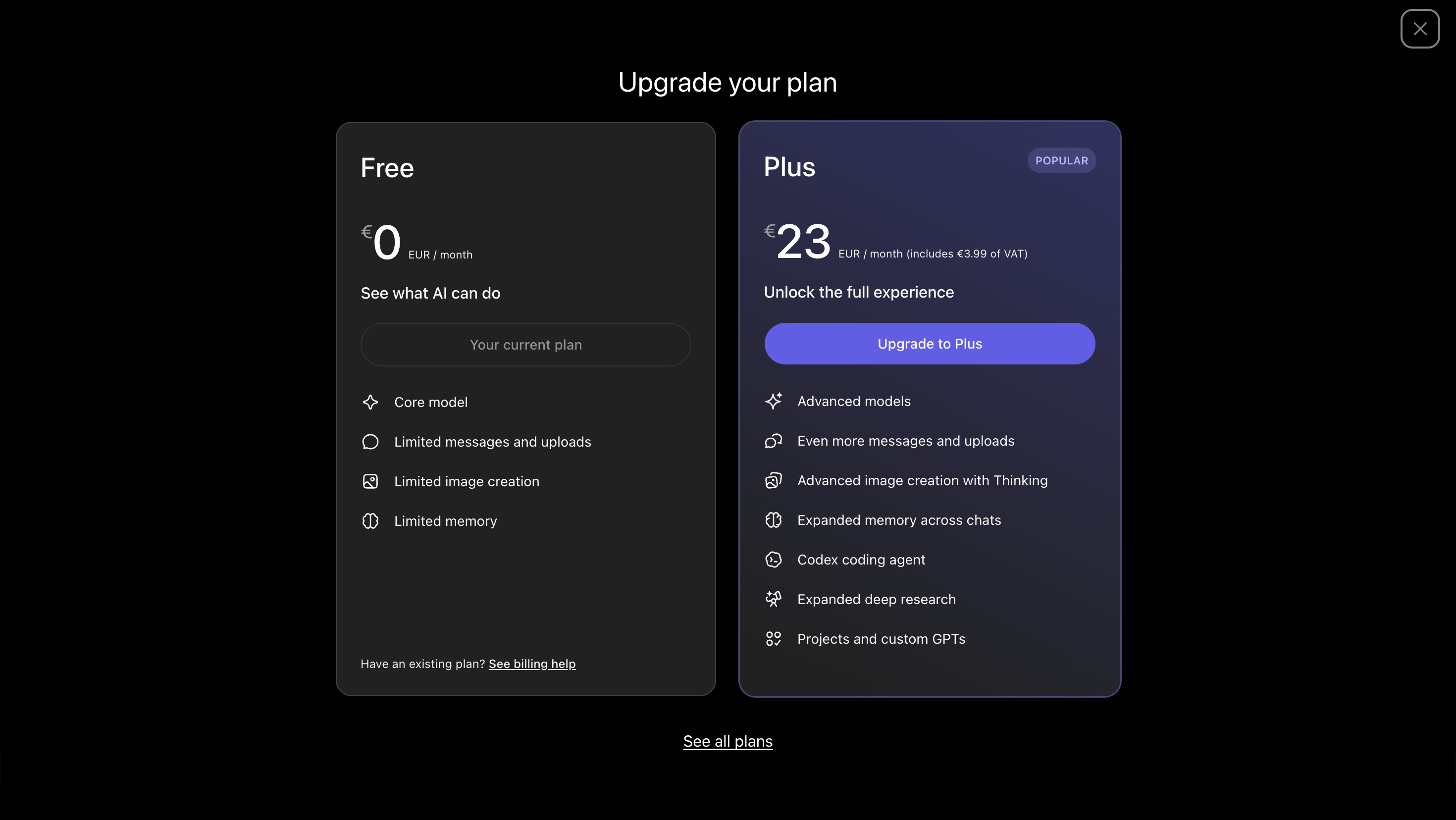
Select the desired plan on the screen and click Upgrade to "your chosen plan". In our example, the subscription price is shown as 23 EUR per month including VAT.
The final amount may vary depending on the account country, taxes, VAT, and the service’s terms. That is why you should always check the amount shown on the final screen before paying.
Step 2. Check the Pay2.House card and balance
Before paying, open your Pay2.House account and check the card you plan to use.
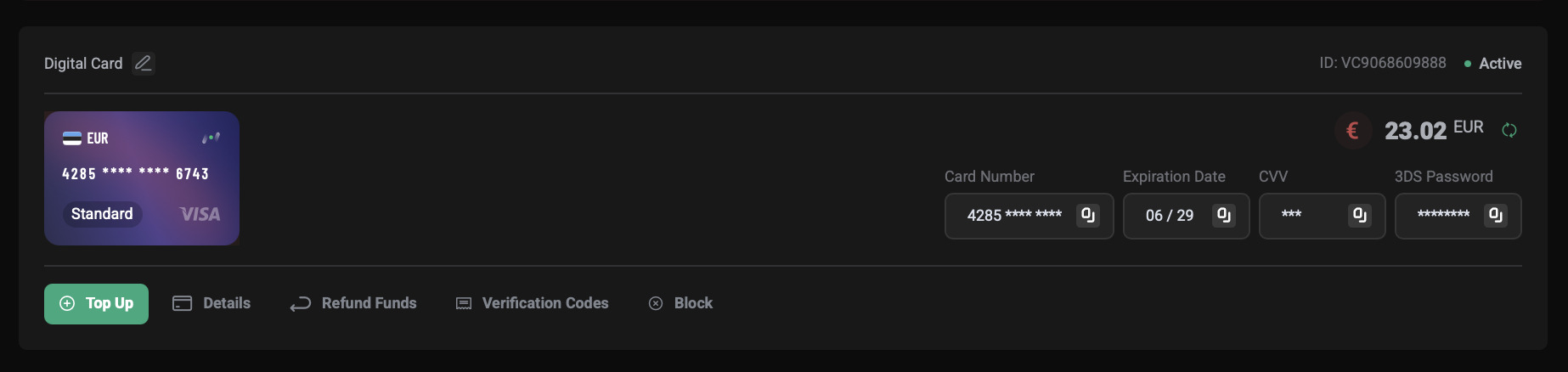
The screenshot shows that the card is active, the card currency is EUR, the card type is Standard, and the payment system is Visa. The main card details are also available: Card Number, Expiration Date, CVV, and 3DS Password.
Also check the balance separately. In the example, the card has 23.02 EUR, while the subscription costs 23 EUR. That amount may be enough, but in normal use it is better to keep a small buffer. This reduces the risk of payment decline caused by fees, conversion, or additional authorization.
Step 3. Wait for the payment form to load
After clicking the plan update button, ChatGPT may show an intermediate screen.
This is a standard step. ChatGPT prepares the subscription checkout and opens the payment form. At this stage, there is no need to refresh the page, close the window, or change the connection. It is better to simply wait for the next screen to load.
Step 4. Choose card payment
After loading, the Configure your plan screen will appear.
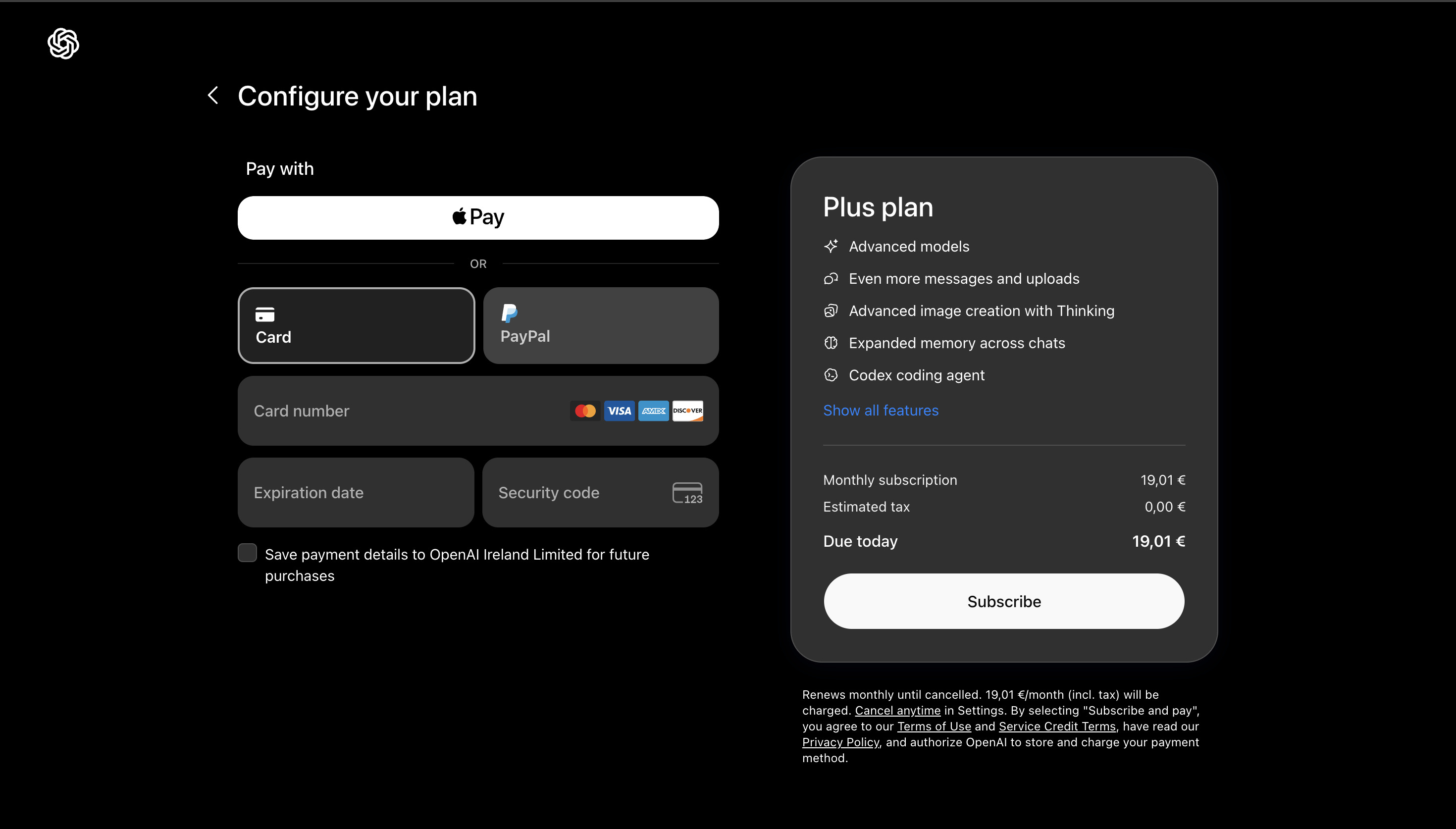
Different payment methods may be available on this screen, such as Apple Pay, Card, and PayPal. To pay with a virtual card from Pay2.House, select Card.
After selecting card payment, fields for entering the card details will appear: Card number, Expiration date, and Security code. The plan information and payment amount will be shown on the right.
In the example, the screen shows Monthly subscription - 19.01 EUR, Estimated tax - 0.00 EUR, and Due today - 19.01 EUR. The final amount in the invoice may differ because it depends on taxes, VAT, and the account’s payment profile.
Step 5. Enter the card details
In the payment form, enter the card details from your Pay2.House account:
- card number
- expiration date
- CVV
- first and last name
- billing address
All card details should be taken only from the Pay2.House interface. Before confirming, carefully check the card number, expiration date, and CVV. A single wrong digit can lead to payment decline.
Step 6. Fill in the billing address
For the Estonia Visa 428589 card, it is recommended to use a billing address with Estonia as the geo.
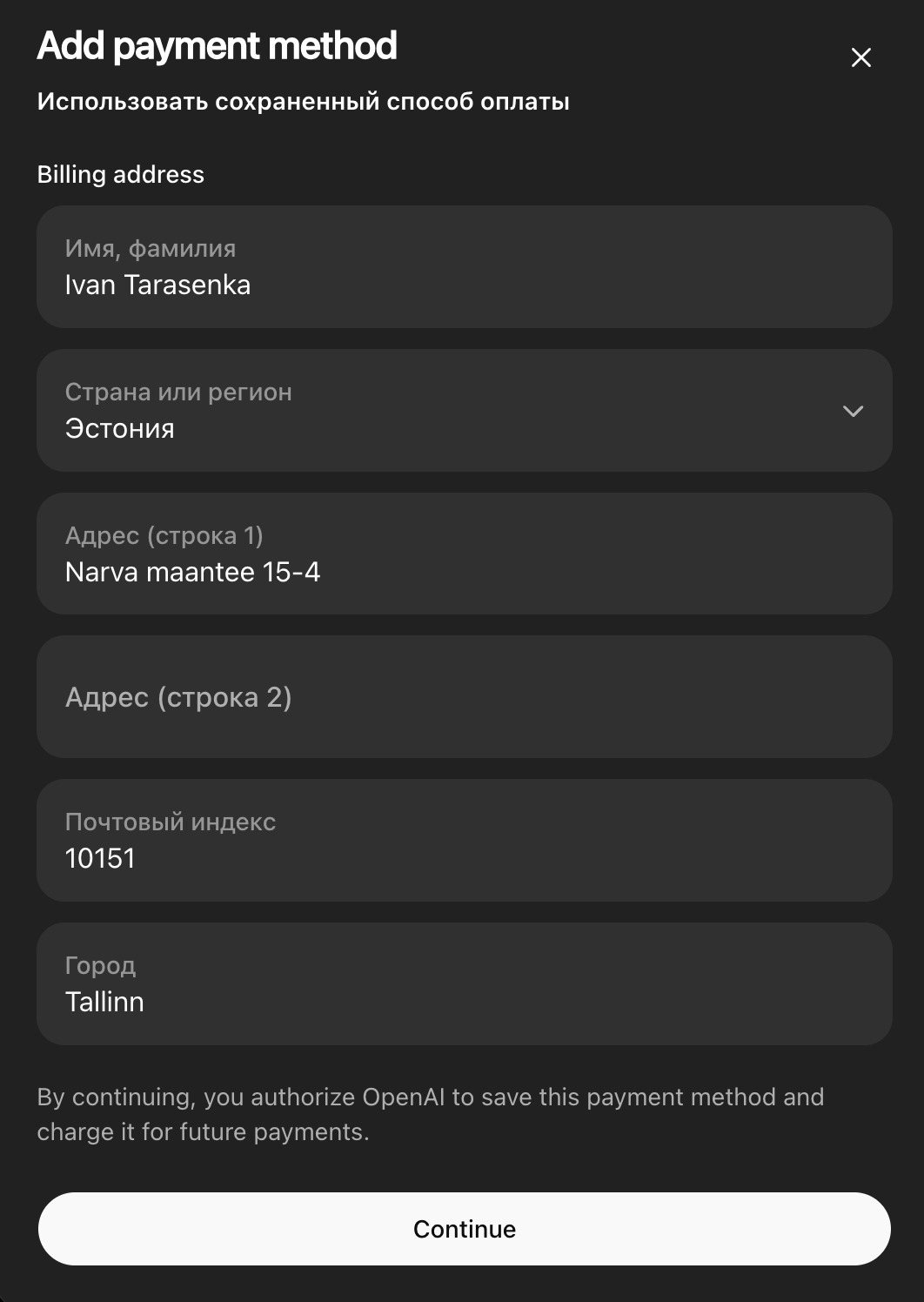
The screenshot shows a correct example:
- first and last name - Ivan Tarasenka
- country or region - Estonia
- address - Narva maantee 15-4
- postal code - 10151
- city - Tallinn
Important: if you are using an Estonia card, it is better to set the billing country to Estonia as well. This makes the payment profile look more consistent to the payment system.
Recommended billing address structure:
- country - Estonia
- city - Tallinn or another valid Estonian city
- postal code - a valid Estonian postal code
- address line - a correct address in Estonia
- name on card - the cardholder’s first and last name
The billing address must be valid and logical. Do not enter a random address, an incorrect postal code, or a country that does not match the card.
Step 7. Add the card to ChatGPT
After entering the card details and billing address, click Continue. If the data is accepted, the card will appear in the Payment methods section.
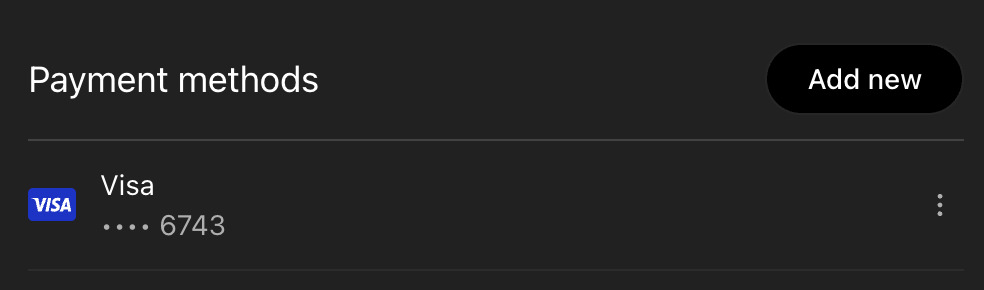
The screenshot shows that the Visa card has been added as a payment method. This means ChatGPT has accepted the card in the account.
Important: adding a card and successfully charging the subscription are not always the same thing. Sometimes the service first saves the card and then performs authorization or the main charge separately.
Step 8. Check the authorization in Pay2.House
After adding the card, a verification authorization from OpenAI may appear in the Pay2.House transaction history.
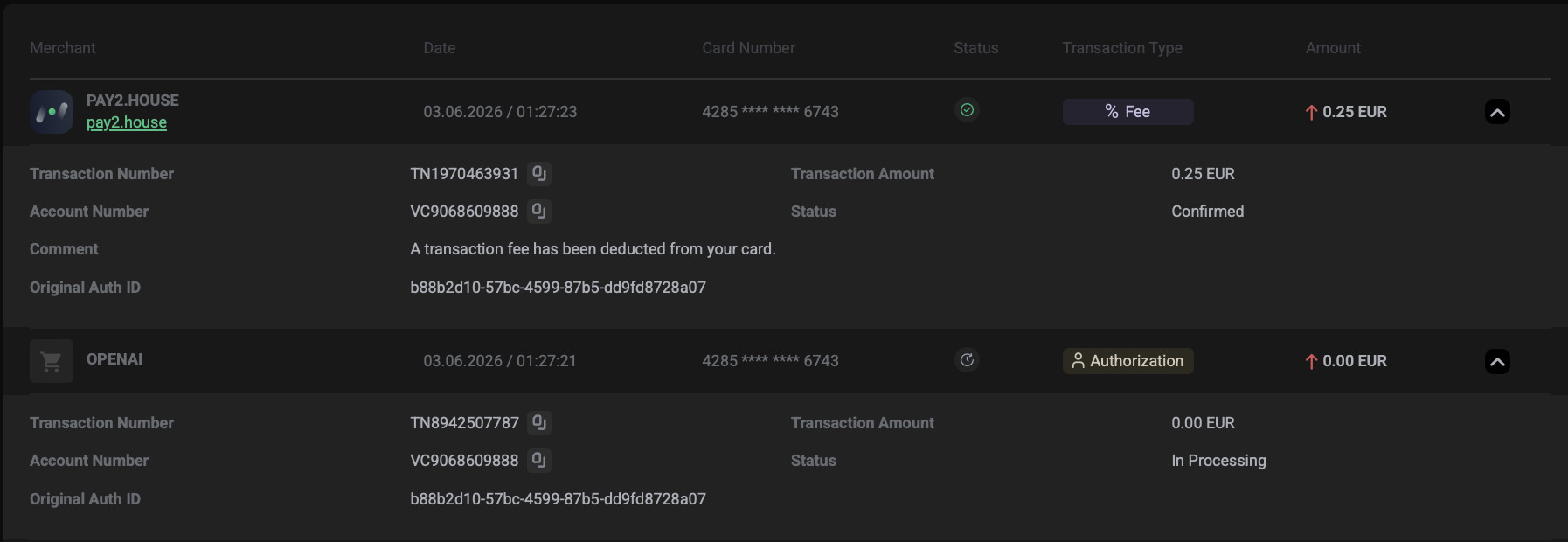
The screenshot shows OPENAI - Authorization for 0.00 EUR and PAY2.HOUSE - Fee for 0.25 EUR. This is normal payment verification logic: OpenAI may place a zero authorization to check the card, and then a processing fee may appear for handling the operation.
The Authorization operation may remain in the In Processing status for some time. This is not always an error. Sometimes the authorization has already gone through, but the interface still shows it as processing.
It is also important to look at the Original Auth ID. If several operations have the same Original Auth ID, they belong to the same payment attempt.
Step 9. Check the successful payment in OpenAI
After a successful payment, a receipt appears in the OpenAI account.
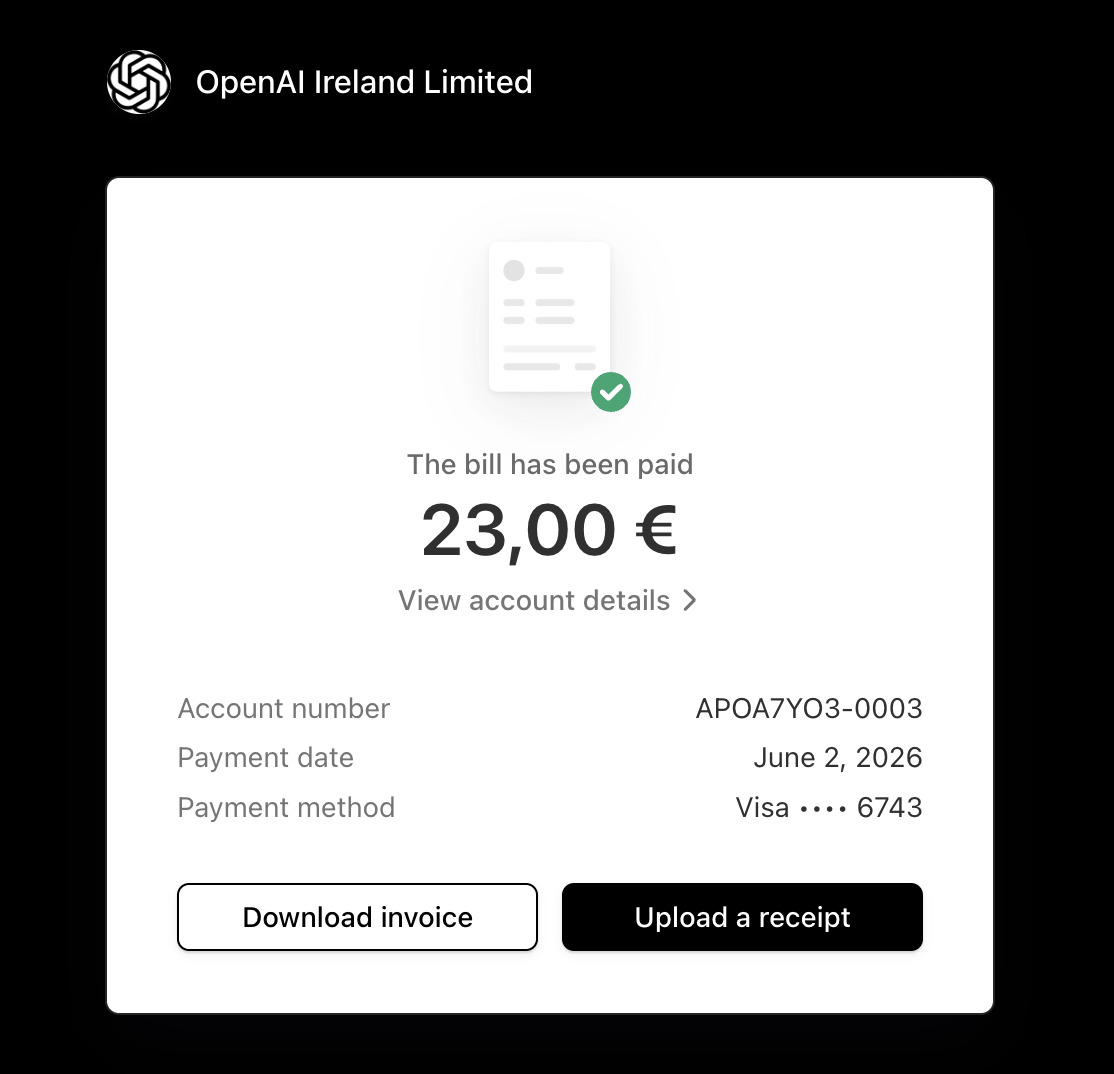
The screenshot shows that the OpenAI Ireland Limited invoice has been paid. The amount is 23.00 EUR, payment method is Visa with the last digits of the card, and the payment date is June 2, 2026.
This confirms that the OpenAI invoice was paid with a Pay2.House card. If needed, the invoice can be downloaded using the Download invoice button.
Step 10. Check the charge in Pay2.House history
After payment, a transaction from OpenAI will appear in the Pay2.House history.

The screenshot shows merchant - OPENAI*CHATGPTSUBSCR, transaction type - Authorization, amount - 23.00 EUR, status - In Processing.
This is the main transaction for the ChatGPT subscription. If the invoice is paid in OpenAI and the subscription is active, the payment has gone through successfully. The In Processing status in the card history may remain visible for some time before the operation is fully updated.
What to consider about IP, geo, and billing profile
When paying for ChatGPT, the card is not the only important factor. The result may also depend on the card country, billing address, IP address, ChatGPT account history, payment attempt frequency, browser, device, and previous declined payments.
For the Estonia Visa 428589 card, it is better if the payment profile looks logical: Estonia card, Estonia billing country, valid Estonia address, stable connection, and one careful payment attempt.
If you use an Estonia billing profile, a stable connection with Estonian geo may look more consistent to the payment system. At the same time, a VPN does not guarantee a successful payment and should not be used to bypass the service rules. The main goal is to avoid sharp mismatches between the card, billing address, IP, and account behavior.
It is not recommended to change the VPN, country, browser, or device before every attempt. This may increase the risk of payment decline.
Possible errors and solutions
Your card was declined
This means the card was declined. First, check whether there are enough funds on the card, whether there is a buffer for fees, whether the card number, expiration date, and CVV were entered correctly, and whether the billing address is correct.
If all details are correct, do not repeat the payment many times in a row. Take a break, check the card, and try again later.
Payment method was declined
This message means that ChatGPT did not accept the payment method. The reason may be not only the card, but also the billing address, payment profile, IP, account region, or previous failed attempts.
Check the details, set Estonia as the billing country for the Estonia Visa 428589 card, and verify the postal code and city. If the error repeats, contact Pay2.House support.
Invalid postal code or ZIP code is incorrect
The error is related to the postal code. Check that the country is set to Estonia, the postal code matches the selected city, the code is entered without extra symbols, and the city and address do not conflict.
Billing address is invalid
The payment form does not accept the address. In this case, check the country, city, postal code, and address line. The address must be valid and logical for the card country.
Insufficient funds
There are not enough funds on the card. Top up the card, take the subscription cost into account, and keep a small buffer for fees or verification operations. For the first top-up, it is better to use at least 55 USD or EUR.
Verification failed or 3D Secure failed
The payment did not pass verification. Check whether a confirmation request appeared, whether the payment page was closed too early, whether 3DS Password is available in Pay2.House, and whether the confirmation time expired.
Too many attempts
This message may appear after several payment attempts in a row. Stop repeating the attempts, check the card details and billing address, take a break, and do not change the IP, card, or device unless necessary.
We are unable to authenticate your payment method
The payment provider could not verify the card or payment details. Check the card number, CVV, expiration date, billing country, postal code, IP, and whether a confirmation request appeared.
What to do if the card does not attach
If the card does not attach on the first try, do not make many attempts in a row. First, check the card balance, available buffer, card number, expiration date, CVV, and billing address.
For the Estonia Visa 428589 card, set the country to Estonia and use a valid city and postal code. Do not change the IP, browser, or device without need. After checking everything, take a pause and only then try again.
If the error repeats, create a ticket in Pay2.House. In the ticket, include:
- last 4 digits of the card
- date and time of the payment attempt
- payment amount
- service name - ChatGPT
- screenshot of the error
- billing details used
- whether 3D Secure was requested
- whether the transaction is visible in the Pay2.House history
This will help support check whether there was a request on the card side and what reason is shown for the transaction.
Tips for stable payment
- Use the card only for online payments.
- For the Estonia Visa 428589 card, use Estonia as the billing country.
- Use a valid address, city, and postal code.
- Keep a small buffer on the card.
- Do not make too many payment attempts in a row.
- Avoid changing the IP, browser, or device unless necessary.
- If you no longer need the subscription, cancel it in ChatGPT in advance.
- If an error appears, save the screenshot and contact support.
How to avoid repeated subscription declines
ChatGPT works on a subscription model. This means the service may automatically try to charge you again in the next billing period.
If you plan to keep using the subscription, check the card balance before the next charge date. If you do not plan to renew, cancel the subscription in ChatGPT settings or remove the payment method if that option is available.
Important: if the card remains attached and there are no funds on it, repeated charge attempts may lead to a decline.


 Telegram
 Email
Email

237675499465
Nous pensions que c'était une entreprise où nous pouvons aussi nous faire un peu d'argent, vu ce que le présentateur parlait, vraiment, c'est le contraire des choses. Merci