


GoDaddy is one of the most popular platforms for domain registration, purchasing hosting, SSL certificates, and other tools for launching and growing websites.
However, when managing multiple projects, a practical question arises: which card should be used to pay for GoDaddy, and how can payments be organized without linking your primary bank card?
In 2026, you can use virtual cards from Pay2.House to pay for GoDaddy.
In this guide, we will walk through the entire process step by step — from issuing a virtual card to successfully paying for an order on GoDaddy. We will also show which BINs work and what to check if the payment does not go through on the first attempt.
Which Pay2.House Cards Work with GoDaddy
Virtual cards with Estonian, Singaporean, and Hong Kong BINs (Visa and Mastercard) are available for paying GoDaddy via Pay2.House.
BIN is the first part of a card number that identifies the payment infrastructure and the card issuer's country.
When choosing a card for GoDaddy, consider not only the payment system but also the card balance, transaction currency, billing information, and the parameters of the specific payment.
Important: having a suitable BIN does not guarantee success for every transaction. The result can be influenced by region, GoDaddy account settings, product type, amount, and other payment parameters.
How to Pay for GoDaddy via Pay2.House
The entire process takes several steps:
Pay2.House → virtual card → funding → GoDaddy → adding the card → paying for the order.
Let's go through each stage.
Step 1. Create a Virtual Card in Pay2.House
Log in to your Pay2.House account and go to the virtual cards section.
Here you can choose a suitable BIN and issue a card to pay for the required service.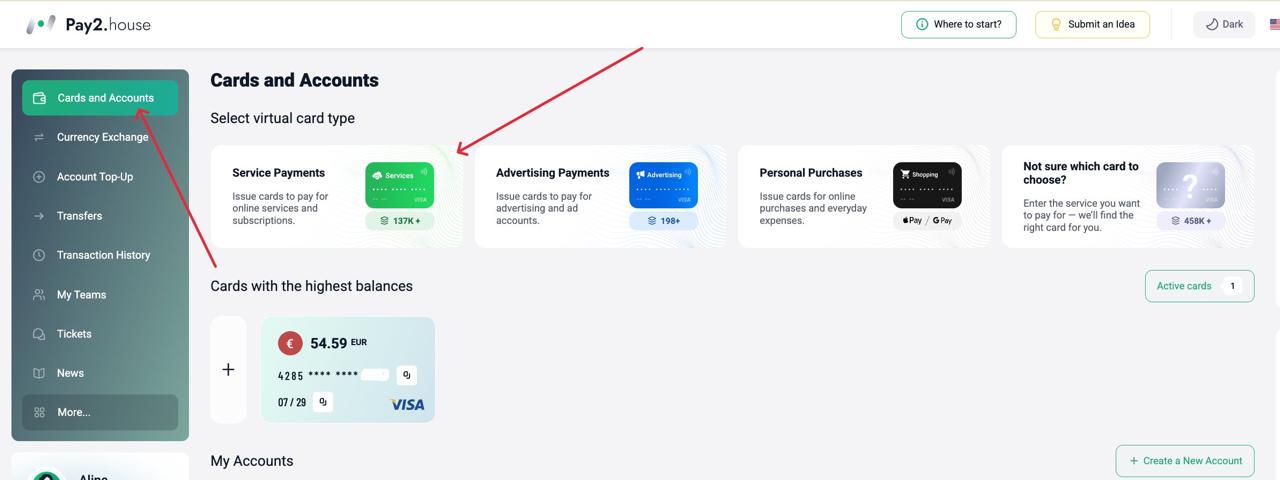
You can also enter the name of the service you plan to pay for via https://pay2.house/payment_services?hl=en. The system will show available cards and BINs suitable for the job and offer to proceed directly to card issuance.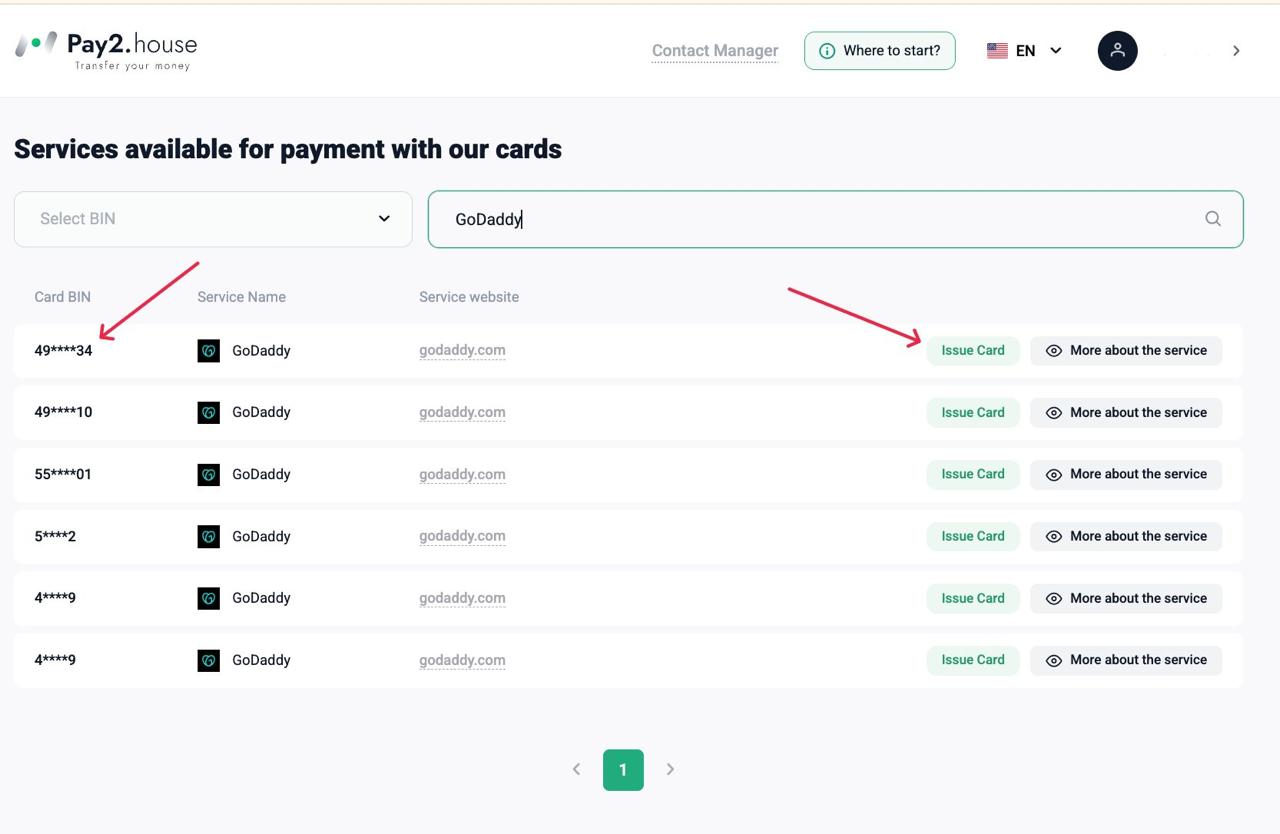
Bonus for New Pay2.House Users
If you have not yet used Pay2.House, you can activate a promo code before issuing a card.
Promo code: PERSONAL
After activation, $15 will be credited to your bonus account.
This money can be used to issue virtual cards in Pay2.House.
In other words, before your first GoDaddy payment, you can activate the promo code, receive the bonus, and use it to issue a virtual card.
You can activate it via this link: https://pay2.house/web/bonus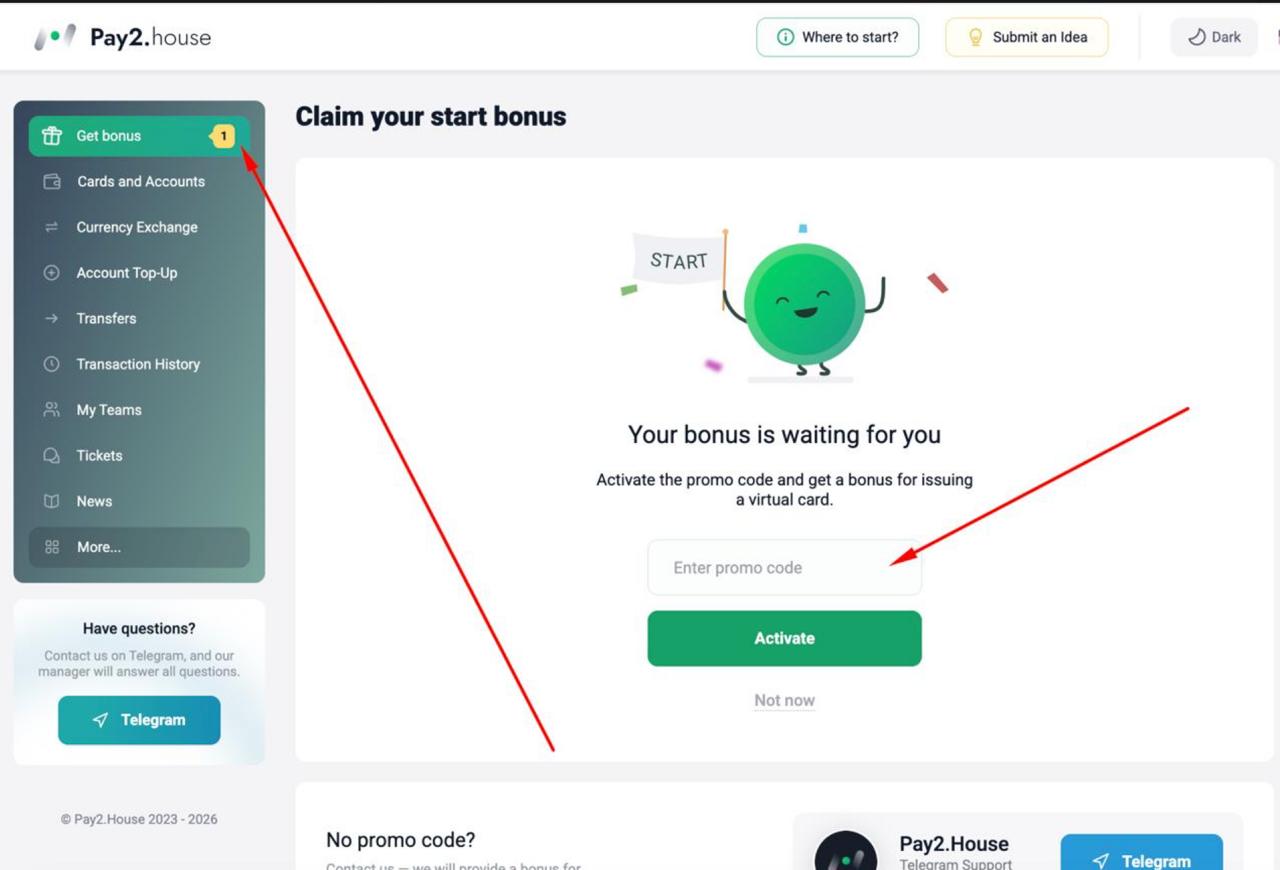
Step 2. Fund Your Account and Issue the Card
In Pay2.House, funds are first credited to your account and then distributed to cards.
How to Fund Your Account
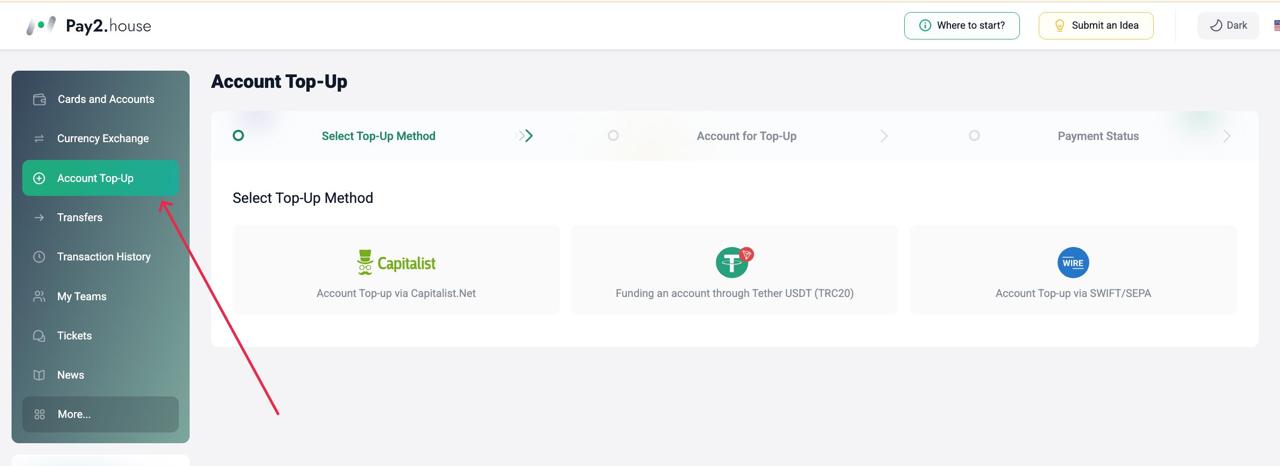
Available methods:
- USDT TRC20 — minimum amount from 5 USDT, 0% fee. Only direct transfers from Tether USDT (TRC20) wallets are accepted.
- Capitalist — 0% fee.
- Wire / SWIFT / SEPA — from 5,000 USD.
After funding, the money appears in your account balance and can be used for card issuance, transfers, or currency conversion.
Card Issuance
The card is created within seconds and becomes available immediately after funding.
- Issuance cost — $5 per card.
- Monthly maintenance — $5.
- Minimum card top-up — $50.
After issuance, the card details (number, expiration date, CVV, and available balance) are displayed in your Pay2.House personal account under "Cards and Accounts".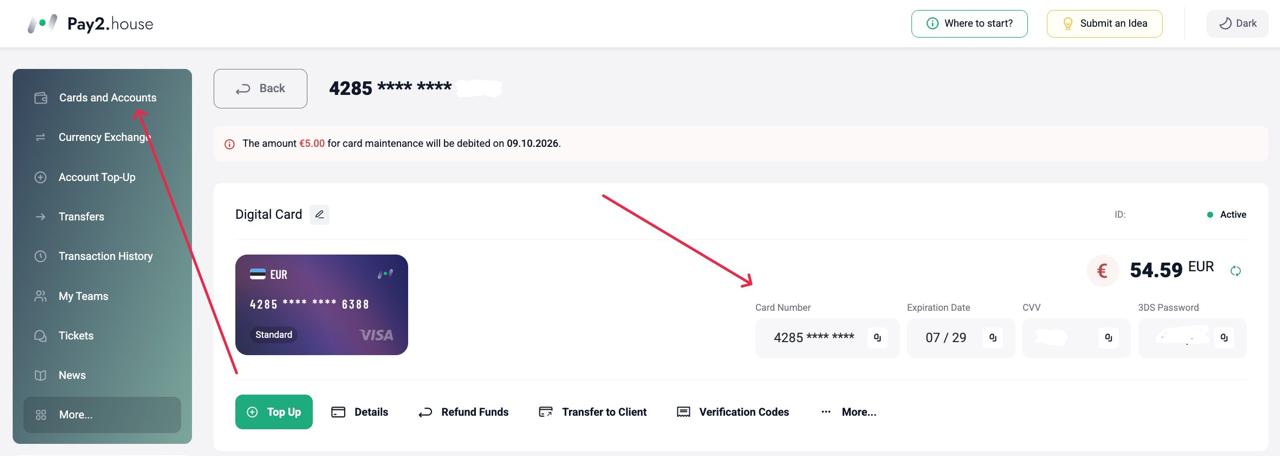
In the control panel, you can select the card currency, payment system, and BIN country, set limits, track transactions, block or close cards. Bulk card issuance and API for automation are available.
Step 3. Select a Product on GoDaddy
Now go to GoDaddy.
For this example, we will look at domain registration.
Enter the required domain name in the search bar and add an available domain to your cart.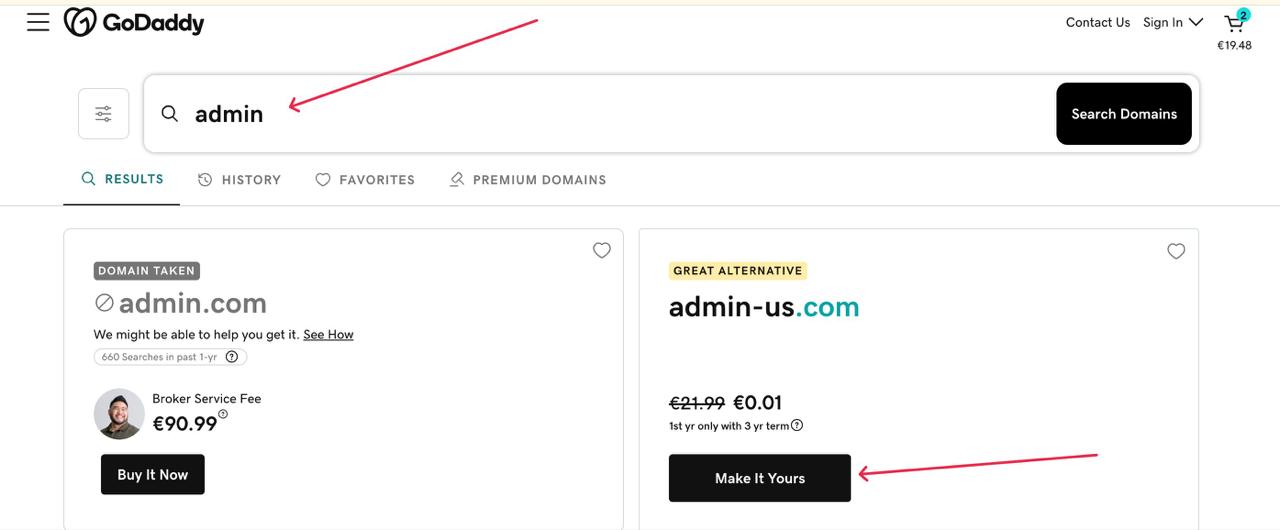
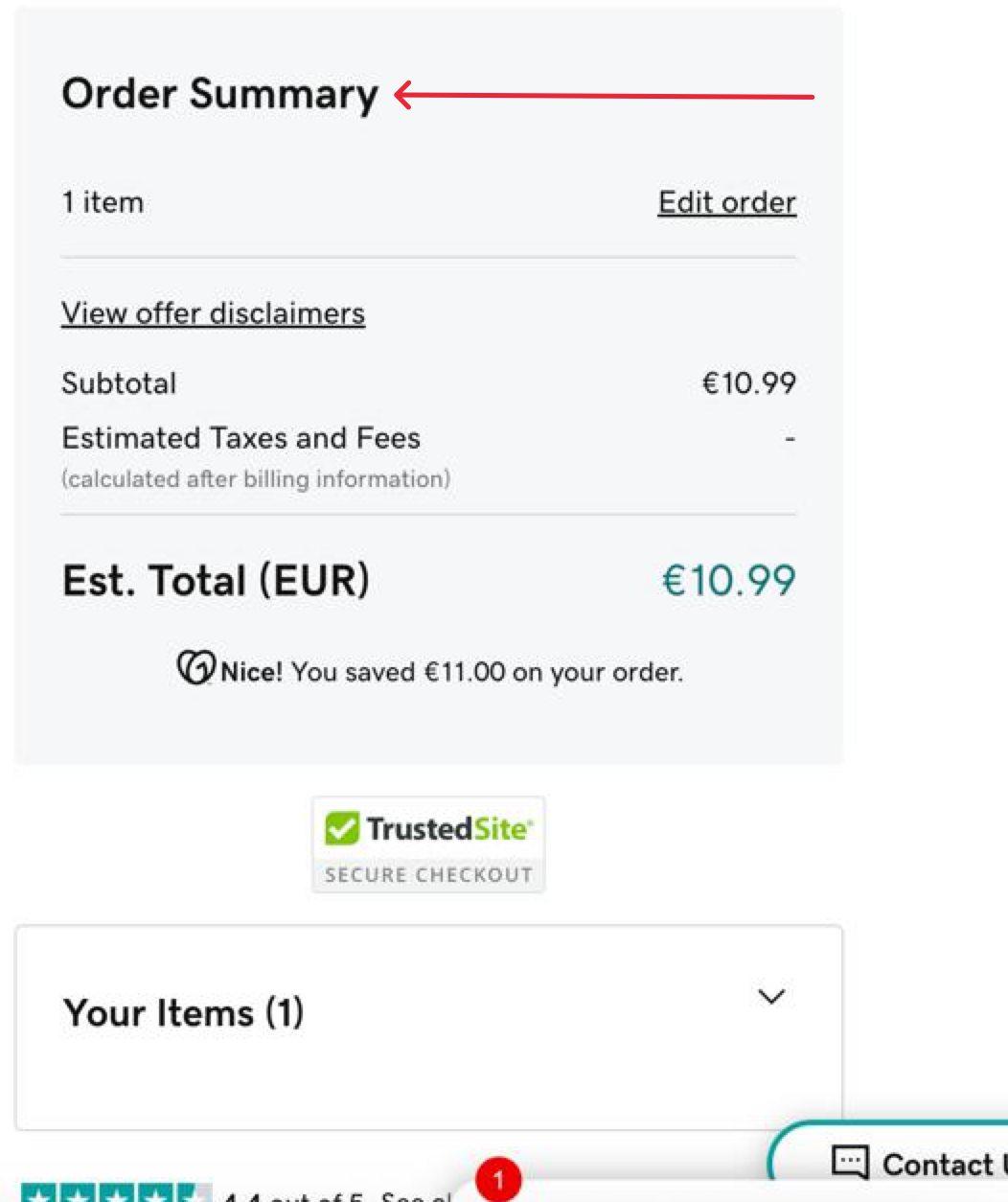
Step 4. Check Your Cart
After adding a domain or another product, proceed to checkout.
Carefully check the contents of your cart before payment.
Pay attention to:
- the selected product;
- registration or subscription period;
- price;
- taxes;
- additional services;
- the total amount.
Step 5. Add Your Pay2.House Virtual Card
Go to the payment method and select adding a bank card.
GoDaddy allows you to use cards as a payment method and save them in your account for future use.
Enter your Pay2.House virtual card details:
- card number;
- expiration date;
- CVV;
- cardholder name, if the field is present;
- Billing Information.
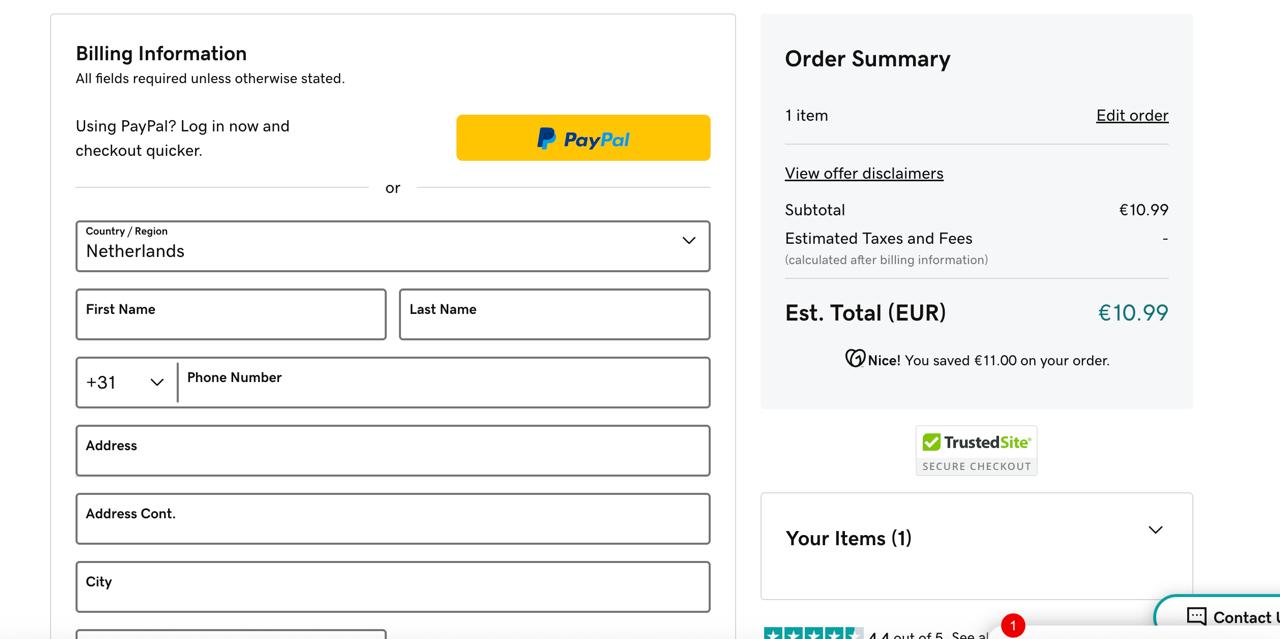
Step 6. Check Billing Information
Carefully check the billing information before payment.
This is an important part of the GoDaddy payment form.
Depending on the interface and region, the following may be requested:
- name;
- address;
- city;
- postal code;
- country;
- other required details.
In GoDaddy, it is better to specify the billing address according to the card's geo: the country and address should match those linked to your Pay2.House virtual card. This reduces the risk of payment decline and additional checks.
If the card is issued for one country but you specify a billing address from another country, the payment is more likely to be declined or require verification.
Step 7. Pay for the Order
After checking all details, click the payment button.
Depending on the GoDaddy interface version, the button may be named differently, for example:
- Purchase / Complete Purchase / Place Order / Pay
After successful payment authorization, GoDaddy will confirm the order.
What to Do If GoDaddy Declines the Card
If the payment does not go through, this does not necessarily mean the problem is with the card itself.
The transaction result can be influenced by:
- the selected BIN;
- balance;
- billing information;
- currency;
- limits;
- GoDaddy account settings;
- the specific product;
- order amount;
- payment processing.
Therefore, do not immediately create a new account or change all settings.
First, go through a basic check.
1. Check Balance
Make sure the card has sufficient funds for the full order amount.
Do not forget to account for possible taxes, additional services, and changes to the final amount.
2. Check Card Details
Double-check:
- card number;
- expiration date;
- CVV;
- cardholder name, if required;
- billing information.
Even a single error in the details can lead to payment decline.
3. Check Billing Information
Make sure all required fields are filled correctly.
Pay special attention to:
- Country → City → Postal Code → Address
Can You Save a Card in GoDaddy?
Yes. GoDaddy allows you to add payment methods to your account and use the saved payment method for subsequent purchases and payments.
This is convenient if you regularly:
- register domains;
- renew domains;
- pay for hosting;
- buy SSL;
- use other GoDaddy products.
Be sure to check Auto-Renewal settings.
If automatic renewal is enabled, GoDaddy may use the saved payment method for future charges.
How to Pay for Multiple Domains and Projects
If you are working with multiple websites or projects at once, the logic remains the same:
Pay2.House → virtual card → GoDaddy → purchase or renewal.
Virtual cards are convenient for separating payments.
For example:
- Card No. 1 → GoDaddy
- Card No. 2 → advertising accounts
- Card No. 3 → SaaS and AI services
- Card No. 4 → other subscriptions
This makes it easier to control expenses for different projects and avoid mixing all payments on one bank card.
For teams and specialists working with a large number of online services, this approach allows you to organize payment infrastructure more systematically.
Frequently Asked Questions
Does GoDaddy Accept Virtual Cards?
GoDaddy supports payment by bank cards, including Visa and Mastercard. The ability to successfully authorize a specific virtual card depends on transaction parameters.
Which Pay2.House Card Is Suitable for GoDaddy?
Cards from Singapore, Hong Kong, and Estonia, Visa and Mastercard.
What to Do If the First Card Does Not Work?
Check the balance, card details, and billing information. If all data is correct, try another available BIN.
Can You Save a Card in GoDaddy?
Yes, GoDaddy allows you to add payment methods to your account and use them for subsequent payments.
Can You Pay for Domain Renewal?
Yes, a saved payment method can be used for subsequent payments and automatic renewal if this feature is enabled in the product settings.
Conclusion
Paying for GoDaddy via Pay2.House is a simple process:
Paying for GoDaddy with a virtual card does not require complex setup: just choose a suitable BIN, issue a card in Pay2.House, and add it as a payment method.
If you plan to regularly pay for domains, hosting, and other online services, virtual cards allow you to build a more convenient and flexible payment infrastructure for your projects.
Use Pay2.House to separate payments between projects and centrally manage virtual cards for online services.


 Telegram
 Email
Email









Be the first to share your opinion!
We value your feedback — share your thoughts.